
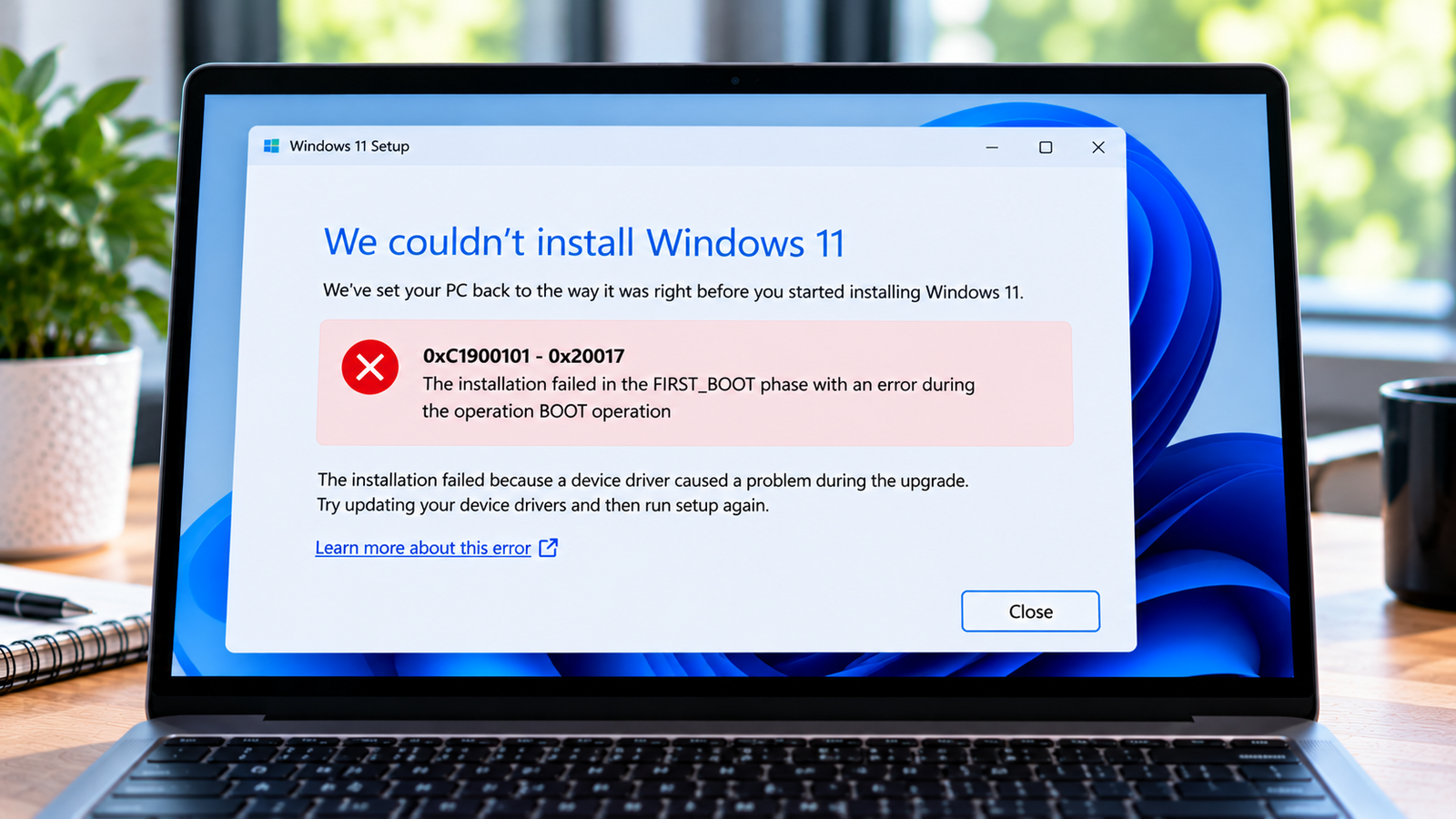
Windows Upgrade Error 0xC1900101: How to Fix Driver-Related Failures
A Windows upgrade can appear to be progressing normally, restart the computer and then suddenly fail. In some cases, the system returns to its previous Windows version without completing the installation.
If you see error 0xC1900101, a driver compatibility problem is one of the first things to investigate. Drivers help Windows communicate with hardware such as storage controllers, graphics cards, network adapters and connected peripherals. An incompatible driver can interrupt the upgrade or prevent Windows from starting correctly during installation.
The code alone does not identify the exact faulty driver. The aim is to narrow down the cause before attempting the upgrade again.
Listen to the quick guide: Windows Upgrade Error 0xC1900101
Quick Diagnosis: Start Here
| What you’re experiencing | Start here |
|---|---|
| The upgrade fails and Windows restores the previous version | Go to Fix 1 ↗ |
| The failure happens while restarting or during the boot phase | Go to Fix 2 ↗ |
| A printer, dock, USB device or external drive is connected | Go to Fix 3 ↗ |
| Device Manager shows a warning beside a device | Go to Fix 4 ↗ |
| The error returns even after updating drivers | Go to Fix 5 ↗ |
| You need to identify the driver responsible for the rollback | Go to Fix 6 ↗ |
Why does error 0xC1900101 occur?
The code generally indicates that Windows Setup has rolled back an upgrade. Common causes include outdated or incompatible drivers, problematic external hardware, third-party security software and certain firmware or hardware configurations. The additional code after the hyphen, when present, can help identify the stage at which Setup failed.
Before making changes, note the complete error code displayed on screen. For example, 0xC1900101 - 0x20017 provides more information than the main code alone.
Fix 1: Record the complete error before retrying
Don’t immediately run the same upgrade again. First, capture the full code and note when the failure occurs.
- Write down the complete error, including any code after the hyphen.
- Note whether the failure happens before the first restart, during a restart, or after the installation appears nearly complete.
- Check whether Windows returns to the previous version automatically.
- If the error appeared during an upgrade launched from Windows Update or an installation assistant, note which method you used.
This information helps distinguish a general driver-related rollback from a failure tied to a particular installation phase.
If you only have 0xC1900101, continue with the checks below. You can still troubleshoot the common causes without knowing the extended code.
Fix 2: Check drivers that can interrupt the upgrade
prioritize drivers that Windows depends on during startup and installation, particularly storage controllers, network adapters and graphics devices.
- Open Start, search for Device Manager, and launch it.
- Expand categories such as Display adapters, Network adapters, Storage controllers and System devices.
- Look for a yellow warning symbol beside a device.
- Right-click a device with a warning and open Properties to review its status message.
- Visit the computer manufacturer’s support website and check for compatible driver updates for your exact model and Windows version.
Install only drivers that match your hardware. If the computer is a laptop or a branded desktop, start with its manufacturer’s support page rather than installing drivers from an unfamiliar download site.
Important: Avoid uninstalling storage-controller drivers or changing driver settings at random. Those changes can affect whether Windows starts.
Fix 3: Strip the upgrade down to essential hardware
External devices are easy to overlook, but a connected peripheral or its driver may interfere with Setup.
- Shut down the computer.
- Disconnect nonessential USB devices, external storage drives, printers, scanners, docks and other peripherals.
- Keep the keyboard, mouse and display connected as needed.
- If you use a laptop docking station, disconnect the dock and connect the laptop directly to power.
- Restart Windows and try the upgrade again.
Do not disconnect internal components or remove hardware from a device that you are not equipped to service.
If the upgrade succeeds after removing peripherals, reconnect them one at a time after Windows is fully updated. This can help identify whether a particular device is involved.
Fix 4: Check third-party security and system utilities
Some security products, encryption tools, hardware utilities and low-level system software can conflict with an operating-system upgrade.
Before changing anything, check whether you recently installed or updated such software.
- Look for pending updates to your security software and system utilities.
- Check the software vendor’s compatibility guidance for your target Windows version.
- If the vendor recommends temporarily removing a product for an upgrade, follow its official removal instructions.
- Make sure you know how to restore the protection or reinstall the software afterward.
Do not leave your computer unprotected longer than necessary, and don’t remove work-managed security software without speaking to your IT administrator.
If you suspect a background application is interfering, a clean boot may help isolate the conflict. Microsoft’s guidance explains how to perform this procedure.
Fix 5: Check firmware and available upgrade space
Drivers aren’t the only possible factor. Firmware compatibility and insufficient storage can complicate a major Windows upgrade.
Work through these checks before another attempt:
- Available storage: Open Settings and check the space available on the Windows drive. Remove unnecessary files or use Windows’ built-in storage tools if space is low.
- Firmware updates: Check the PC manufacturer’s support page for BIOS or UEFI updates that apply to your exact model.
- Power stability: Keep a laptop connected to its charger and avoid interrupting the installation.
- Backup: Back up important documents and confirm that you can access your recovery options before a major upgrade.
Do not install a BIOS update intended for a different model, and don’t interrupt a firmware update once it has started. If the computer is managed by an organization, consult its IT team before changing firmware.
Fix 6: Use Setup logs to identify the failure
If the basic checks don’t resolve the problem, logs can provide more useful evidence than repeatedly retrying the upgrade.
Windows Setup may retain diagnostic files in these locations:
C:\$Windows.~BT\Sources\PantherC:\$Windows.~BT\Sources\Rollback
The exact files available depend on the failure and installation stage. Microsoft documents logs such as setupact.log, setuperr.log and rollback-related files for investigating upgrade failures.
To investigate:
- Open File Explorer.
- Enter the relevant path in the address bar. Some folders may be hidden, and access may depend on your account permissions.
- Look for logs whose timestamps match the failed upgrade.
- Review the entries around the failure time for a named driver, device, setup phase or error.
- If the log identifies a driver, obtain a compatible update or troubleshooting instructions from the hardware manufacturer.
Don’t delete the rollback folders before investigating. They may contain the information needed to identify the cause.
If the logs are difficult to interpret, Microsoft’s SetupDiag tool can help analyse Windows Setup logs. Advanced findings may require technical support, particularly if the computer repeatedly crashes or fails to boot.
How to reduce the chances of another failed upgrade
A little preparation can make the next attempt more predictable.
- Keep essential device drivers current using trusted manufacturer sources.
- Remove unnecessary peripherals during the upgrade.
- Confirm that enough storage is available.
- Back up important files before major Windows version changes.
- Check compatibility information for security, encryption and system-management software.
- Record the full error code if Setup rolls back again.
Avoid repeating the upgrade indefinitely without changing anything. A recurring 0xC1900101 error is a reason to investigate the driver or setup phase involved.
Frequently asked questions
Is error 0xC1900101 always caused by a driver?
No. Driver incompatibility is a common cause, but hardware configuration, third-party software and other setup issues can also contribute. The complete error code and diagnostic logs can help narrow down the cause.
Why does Windows return to the previous version after the upgrade fails?
Windows Setup may roll back when it cannot complete a stage of the installation or start the upgraded system successfully. The rollback is intended to restore the earlier working version, not necessarily to indicate that your files have been erased.
Should I update every driver before trying again?
Not blindly. prioritize devices with reported problems and drivers relevant to the upgrade, and use the PC or hardware manufacturer’s compatible releases. Unnecessary driver changes can introduce new problems.
Can I fix 0xC1900101 by resetting Windows Update?
Not necessarily. This code commonly points to a driver-related upgrade rollback, so repeatedly resetting the update cache may not address the underlying cause. Check drivers, peripherals and setup logs first.
What if the error appears again after all these checks?
Record the full extended code, preserve the Setup logs and consider using SetupDiag or contacting Microsoft or the PC manufacturer. If the computer is business-managed, involve your IT administrator before making advanced system changes.
Final thoughts
Windows upgrade error 0xC1900101 is best approached as a diagnostic problem rather than a prompt to run every repair tool available. Start with the complete error code, check drivers and connected hardware, and use the Setup logs if the cause remains unclear.
Finding the reason for the rollback is more useful than repeating an upgrade that keeps failing.






