
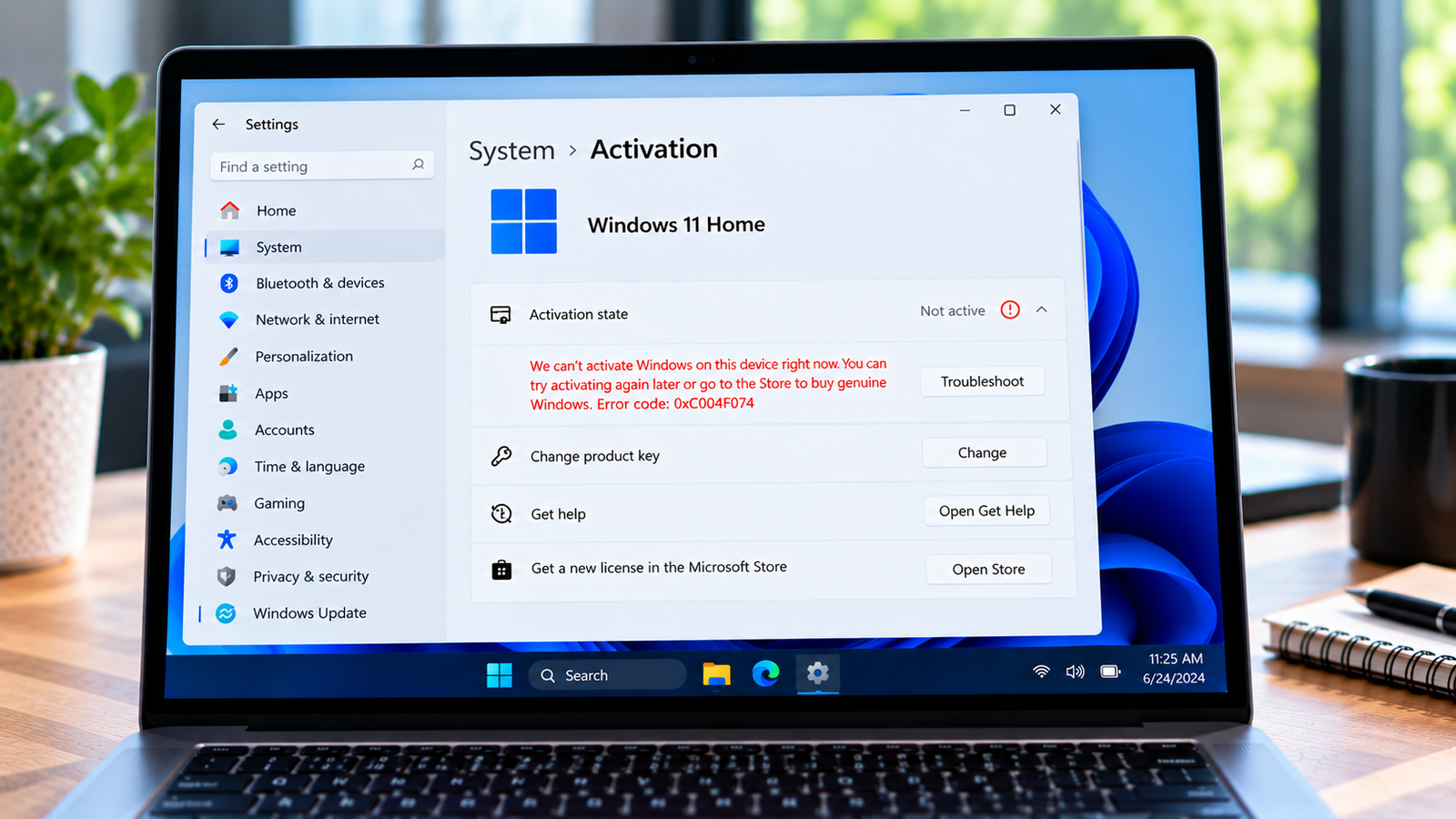
Windows Activation Error 0xC004F074: How to Fix Server Connection Problems
Windows activation errors don’t always mean something is wrong with your product key. Sometimes, the computer simply cannot reach the service responsible for activating it.
Error 0xC004F074 is commonly associated with Key Management Service (KMS) activation. organizations use KMS to activate eligible Windows installations across multiple computers. Instead of each computer relying solely on an individually entered retail key, activation is managed through an organization’s licensing infrastructure.
When a device cannot contact the required activation service, Windows may display this error.
Listen to the quick guide: Windows Activation Error 0xC004F074
Quick Diagnosis: Windows Activation Error 0xC004F074
| What you’re experiencing | Start here |
|---|---|
| Windows displays 0xC004F074 on a work or school computer | Go to Fix 1 ↗ |
| Activation fails when you’re working away from the office | Go to Fix 2 ↗ |
| The computer connects to the workplace network, but activation still fails | Go to Fix 3 ↗ |
| The error continues after the network connection is restored | Go to Fix 4 ↗ |
One important distinction: this guide is primarily for workplace or school computers configured for organizational activation. If you purchased an ordinary personal copy of Windows, KMS troubleshooting may not apply to your situation.
Before changing anything
Check whether this is a managed computer. If your organization installed Windows or manages its activation, avoid changing product keys, running activation scripts or altering network settings without permission.
Start with the four checks below. Each one addresses a different possible cause.
Fix 1: Establish whether Windows uses organizational activation
First, find out how the computer is expected to activate. This determines which troubleshooting steps make sense.
- Open the Start menu and search for Terminal or Command Prompt.
- Open it and run:
slmgr /dlv - Review the Software Licensing information that appears.
- Look for licensing details indicating a volume activation or KMS configuration.
The output contains several technical fields. You do not need to change anything at this stage. The purpose is to establish whether KMS is actually involved.
If this is a company-managed computer, your IT administrator can confirm the activation method. If it is your personal computer and you bought a retail license, stop here and verify the licensing method before proceeding with workplace-specific troubleshooting.
Fix 2: Reconnect to the network your organization requires
A working internet connection does not necessarily mean a computer can reach its organization’s activation server.
For example, a laptop may browse websites normally from home but still be unable to reach internal workplace services.
Try the following:
- If your organization requires a VPN, connect to the approved workplace VPN.
- If you are in the office, check whether the computer is connected to the correct corporate network.
- If the VPN connection appears active but access still fails, disconnect and reconnect using your organization’s normal procedure.
- If you have recently changed networks, retry activation after the required connection is restored.
Once connected, open Terminal or Command Prompt and run:
slmgr /atoThis requests activation. If it succeeds, review the activation status to confirm the result.
If the error returns, don’t keep repeating the command. The device may be unable to locate the KMS server, the server may be unavailable, or the organization’s activation configuration may need attention.
Fix 3: Check whether the KMS server can be discovered
KMS clients may discover their activation server through DNS records. If the required record is missing or the computer is using the wrong DNS configuration, activation can fail even when general internet access works.
This is a diagnostic check, not a request to change your network configuration.
- Connect to the required workplace network or VPN.
- Open Command Prompt.
- Run:
nslookup -type=SRV _vlmcs._tcp - Review the result.
If the lookup returns a service record, it may identify the KMS host and port information. If it returns no record or reports that the name cannot be found, the computer may not be able to discover the server through DNS.
However, a missing response does not prove that the KMS server itself is down. Some organizations configure activation differently.
What should you do next?
If this is a managed device, share the lookup result with your IT administrator. They can check DNS records, the configured activation host and whether the device is using the expected network settings.
Avoid manually assigning a KMS host or changing DNS servers based on guesses. Those settings should match your organization’s approved configuration.
Fix 4: Check for a workplace licensing or server-side issue
If the computer is on the correct network and still cannot activate, the problem may be outside the device.
The KMS host could be unavailable, its configuration may be incorrect, or the organization’s activation service may need maintenance. In some cases, the activation request can also fail because of a licensing configuration issue.
At this point, collect the information that will help the administrator investigate:
- The complete activation error code.
- Whether the device is connected to the workplace network or VPN.
- The output from
slmgr /dlv, with sensitive information removed before sharing. - The result of the DNS lookup from Fix 3.
- The time when the activation attempt failed.
Ask the administrator to verify that the KMS host is reachable, the relevant DNS configuration is correct and the organization’s volume activation setup is functioning as expected.
If the computer is managed by your employer or school, this is usually the appropriate point to hand over the issue. Client-side troubleshooting cannot repair an unavailable or incorrectly configured activation server.
Why the error may return
KMS activation is designed for eligible organizational environments. It depends on the client being able to communicate with the configured activation infrastructure and meet the applicable licensing requirements.
That is why the same error can appear after a network change, during remote work or when an organization’s activation service is unavailable.
It is also why a generic product-key fix may accomplish nothing. The key question is whether the device can use the activation method for which it was configured.
Frequently asked questions
Does error 0xC004F074 mean my Windows product key is invalid?
Not necessarily. The error is commonly associated with a KMS activation failure. A connectivity or configuration issue may prevent activation even when the organization’s licensing arrangement is valid.
Can I fix this error by connecting to Wi-Fi?
Only if the network connection is the underlying problem. A computer may have internet access but still lack access to the workplace activation server. Some organizations require a VPN or another approved network connection.
Does this error affect ordinary home computers?
It is primarily relevant to Windows installations configured for organizational KMS activation. If your personal computer uses a retail key or a digital license, first confirm the activation method before following these steps.
Should I enter a new product key?
Not as a first step. Replacing the key without understanding the existing licensing configuration may not solve a server connection problem. For a company-managed device, consult your IT administrator before making licensing changes.
What if the computer is connected to the company VPN but activation still fails?
Check the KMS discovery result and provide it to your IT administrator. The VPN may be connected without providing access to the required activation service, or the server-side configuration may need investigation.
Final takeaway
Windows activation error 0xC004F074 is often about communication with an organizational activation service, not simply a missing product key.
Confirm the activation method first, restore the required workplace connection and check whether the KMS server can be discovered. If those steps don’t resolve the issue, give your IT administrator the error details and diagnostic results rather than changing licensing or network settings at random.






