
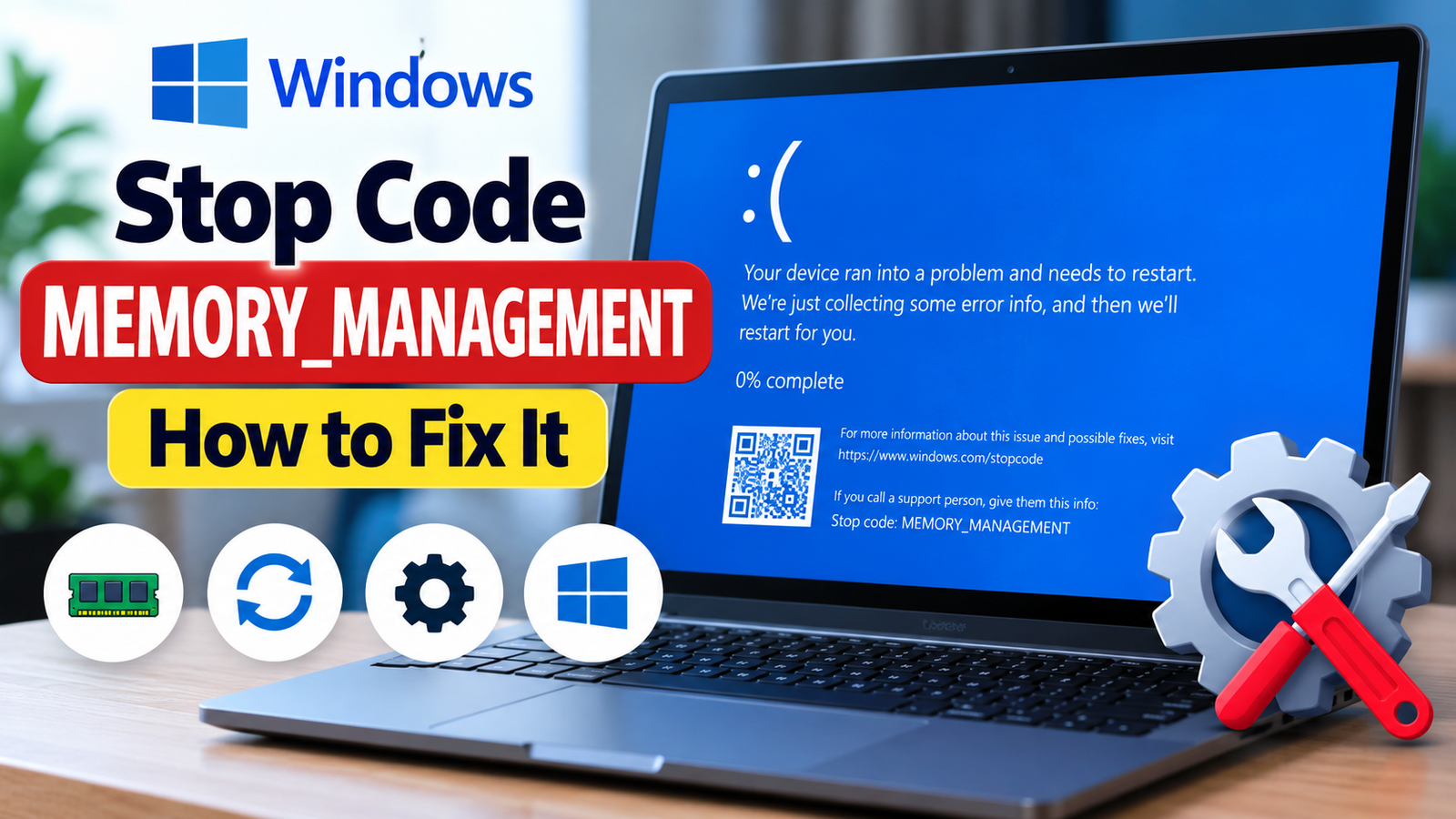
Windows Stop Code MEMORY_MANAGEMENT: How to Fix It
A blue screen with the stop code MEMORY_MANAGEMENT can appear while you are working, gaming, browsing, or starting your computer. Windows may restart automatically, leaving you wondering whether your RAM is failing or something else is causing the crash.
The error points to a problem with how Windows manages memory, but it does not automatically mean your physical RAM is defective. Faulty drivers, corrupted system files, unstable memory settings, and hardware problems can all contribute to this type of crash.
The best approach is to identify when the blue screen occurs, check for recent changes, and test the likely causes in a sensible order. This guide walks you through those checks without asking you to replace hardware prematurely.
Quick Diagnosis: Start Here
| What you’re experiencing | Start here |
|---|---|
| The blue screen appeared after installing a driver or Windows update. | Go to Fix 1 ↗ |
| Your PC crashes repeatedly, even during ordinary tasks. | Go to Fix 2 ↗ |
| You suspect corrupted Windows system files. | Go to Fix 3 ↗ |
| The crash started after changing RAM speed or BIOS settings. | Go to Fix 4 ↗ |
| You want to test whether your computer’s memory is reporting errors. | Go to Fix 5 ↗ |
| The computer crashes during startup or before you can sign in. | Go to Fix 6 ↗ |
| Crashes continue despite the initial troubleshooting steps. | Go to Fix 7 ↗ |
What Does the MEMORY_MANAGEMENT Stop Code Mean?
Windows uses system memory, or RAM, to hold data and instructions that programs need while running. The operating system also manages how applications and system components access that memory.
The MEMORY_MANAGEMENT stop code appears when Windows detects a serious problem in its memory-management operations.
Possible causes include:
- Defective or unstable RAM.
- A problematic device driver.
- Corrupted Windows system files.
- Unstable overclocking or memory profiles.
- Hardware problems or other system instability.
The timing of the crash matters. If it started immediately after a driver installation, investigate that change first. If the PC crashes unpredictably across different applications, a memory test becomes more useful.
Fix 1: Undo Recent Driver or Software Changes
If the error started after installing a driver, utility, or system update, investigate that change before performing more extensive repairs.
- Press Windows + X and open Device Manager.
- Expand the category related to the recently updated device.
- Right-click the device and select Properties.
- Open the Driver tab.
- If available, select Roll Back Driver and follow the instructions.
The rollback option may be unavailable if Windows does not retain an earlier driver.
If the problem began after installing a new third-party system utility, consider uninstalling that utility through Settings → Apps → Installed apps. Restart the computer and check whether the crash returns.
Avoid removing several drivers or applications at once. Changing one thing at a time makes it easier to identify the actual cause.
If the error persists, continue with the Windows system-file checks.
Fix 2: Check Windows for System File Corruption
Damaged Windows components can contribute to system instability. Windows includes built-in tools that check and repair certain types of system-file corruption.
Before running them, save your work and close open applications.
- Open Start and search for Command Prompt.
- Select Run as administrator.
- Enter this command:
DISM /Online /Cleanup-Image /RestoreHealth- Wait for the operation to finish. It may take several minutes.
- In the same administrator window, run:
sfc /scannow6. Wait for the scan to complete, then restart your computer.
DISM checks and repairs the Windows component store, while System File Checker checks protected system files and attempts repairs where possible.
If either tool reports that it could not complete the repair, note the exact message. Do not assume that a successful scan proves the RAM or other hardware is healthy.
Fix 3: Check for Windows and Driver Updates
Outdated or incompatible drivers can cause crashes, particularly when Windows interacts with graphics, storage, or other hardware.
- Open Settings → Windows Update.
- Select Check for updates.
- Install relevant available updates.
- Restart the PC if prompted.
- Check the computer manufacturer’s support page for drivers intended for your exact model, particularly if the crashes began after a hardware or driver change.
If the blue screen began immediately after a particular update, do not automatically install or uninstall everything. Review the recent change and use the appropriate rollback option if there is evidence that it triggered the problem.
Avoid third-party driver-updater utilities that promise to update every driver automatically. Manufacturer-provided drivers are generally the safer starting point.
Fix 4: Restore Stable Memory and BIOS Settings
Have you recently enabled XMP or EXPO memory profiles, increased RAM speed, overclocked your processor, or changed BIOS settings? If so, the new configuration may be unstable.
Memory profiles can run RAM at settings beyond its basic default configuration. A system that appears to start normally may still crash under certain workloads if those settings are unstable.
To investigate:
- Restart the computer and enter BIOS or UEFI setup using the manufacturer’s instructions.
- Review any memory overclocking or performance profile settings you recently changed.
- If the crashes began after such a change, return those settings to their previous stable values or use the manufacturer’s recommended defaults.
- Save the changes and restart.
BIOS menus differ between manufacturers, so do not follow generic instructions for an unfamiliar setting. If you are unsure, consult the computer or motherboard manufacturer’s documentation.
Important: Do not change storage-controller settings, Secure Boot, or unrelated BIOS options while troubleshooting memory. If BitLocker or Device Encryption is enabled, make sure you have your recovery key available before making firmware changes that could trigger a recovery prompt.
If the error continues with stable settings, test the memory itself.
Fix 5: Run Windows Memory Diagnostic
Windows includes a built-in utility that checks RAM for memory errors. This is a useful next step if the blue screen occurs repeatedly without an obvious software trigger.
Before starting, save your work. The computer will restart to perform the test.
- Press Windows + R.
- Type:
mdsched.exe- Press Enter.
- Select Restart now and check for problems if you are ready for the restart.
- Allow the test to run. Do not interrupt the computer while it is checking memory.
After Windows starts again, look for the diagnostic result. If the result does not appear automatically, open Event Viewer and inspect the Windows Memory Diagnostic results in the system logs.
What if the test reports memory problems?
A reported memory error is a reason to investigate RAM and memory stability further. It does not necessarily identify which component is faulty. The RAM module, motherboard, memory configuration, or memory controller may need further assessment.
If the test reports no errors, that is useful information, but it does not completely rule out intermittent memory faults.
If your computer continues crashing, move on to the next step rather than repeatedly running the same test without changing the diagnosis.
Fix 6: Troubleshoot If Windows Crashes Before Startup
Sometimes MEMORY_MANAGEMENT appears so frequently that you cannot remain signed in long enough to troubleshoot.
Windows Recovery Environment may help you access repair options.
- Start the computer and check whether Windows can reach the sign-in screen.
- If Windows cannot start normally, use the manufacturer’s or Microsoft’s instructions for accessing Windows Recovery Environment. Depending on your system, this may require recovery media or the automatic recovery process.
- Select Troubleshoot → Advanced options.
- If the problem followed a recent update, consider Uninstall Updates and follow the available instructions.
- If you have a restore point from before the problem began, System Restore may be an option.
The available recovery options depend on your Windows configuration. System Restore is not available on every computer, and it can affect recently installed applications, drivers, and system settings.
Avoid choosing Reset this PC as the first response to this error. A reset is more disruptive, and it may not solve a physical memory fault. Back up important files whenever possible before attempting major recovery operations.
Fix 7: Investigate Persistent Crashes and Possible Hardware Faults
If the error continues after software checks and memory testing, it is time to look for a deeper hardware or driver problem.
Pay attention to these clues:
- Crashes occur under heavy workloads: The problem may be related to memory stability, heat, or another hardware issue.
- Crashes began after installing RAM: Compatibility, seating, or configuration may need to be checked.
- Other stop codes appear as well: Different crash codes can indicate a broader system-stability issue.
- The computer also freezes or fails to start: Professional hardware diagnosis may be appropriate.
If you are comfortable with hardware maintenance and your computer’s documentation permits it, you can inspect whether RAM modules are seated correctly. Shut down the computer, disconnect power, and follow the manufacturer’s safety instructions. Laptop memory may be inaccessible or not user-replaceable.
Do not open a device if doing so could damage it or affect your warranty. If the system is under warranty, contact the manufacturer.
A technician can test individual RAM modules and slots, check compatibility, and investigate the motherboard or other hardware. Avoid purchasing replacement RAM until there is enough evidence to justify it.
When Should You Seek Professional Help?
Consider professional diagnosis if:
- Windows Memory Diagnostic reports errors.
- The computer repeatedly blue-screens before you can sign in.
- Crashes continue after restoring stable settings and checking Windows files.
- You suspect physical damage, overheating, or a motherboard problem.
- Important files are at risk because the computer is becoming increasingly unstable.
If Windows still starts, back up important documents before extensive troubleshooting. If the computer is repeatedly crashing or making unusual hardware noises, avoid unnecessary restarts and seek appropriate support.
Frequently Asked Questions
Does MEMORY_MANAGEMENT always mean my RAM is faulty?
No. The stop code concerns Windows memory management, but the underlying cause may be a driver, corrupted system files, unstable memory settings, or defective hardware. A memory test helps narrow down the possibilities.
Can I fix the MEMORY_MANAGEMENT blue screen without replacing RAM?
Yes, in some cases. Correcting a faulty driver, repairing Windows system files, or restoring stable memory settings may resolve the problem. Replacement should depend on the evidence, not the stop code alone.
Is Windows Memory Diagnostic enough to confirm that RAM is healthy?
It is a useful initial test, but a clean result cannot rule out every intermittent fault. If crashes continue, further memory or hardware testing may be needed.
Can overclocking cause the MEMORY_MANAGEMENT error?
Yes. Unstable memory or processor settings can contribute to system crashes. If the issue started after changing performance settings, return the affected settings to a stable configuration and test again.
Should I reinstall Windows to fix this error?
Reinstallation is not the best first step. Try the targeted checks first. If the underlying problem is defective hardware, reinstalling Windows will not repair it.
Final Thoughts
The Windows MEMORY_MANAGEMENT stop code can be alarming, but it is a clue rather than a definitive diagnosis. Start with recent changes, check Windows system files, and run the built-in memory diagnostic before considering hardware replacement.
If the crashes continue, record any additional stop codes and the circumstances in which they occur. That information can help distinguish a software issue from an underlying memory or hardware fault.






