
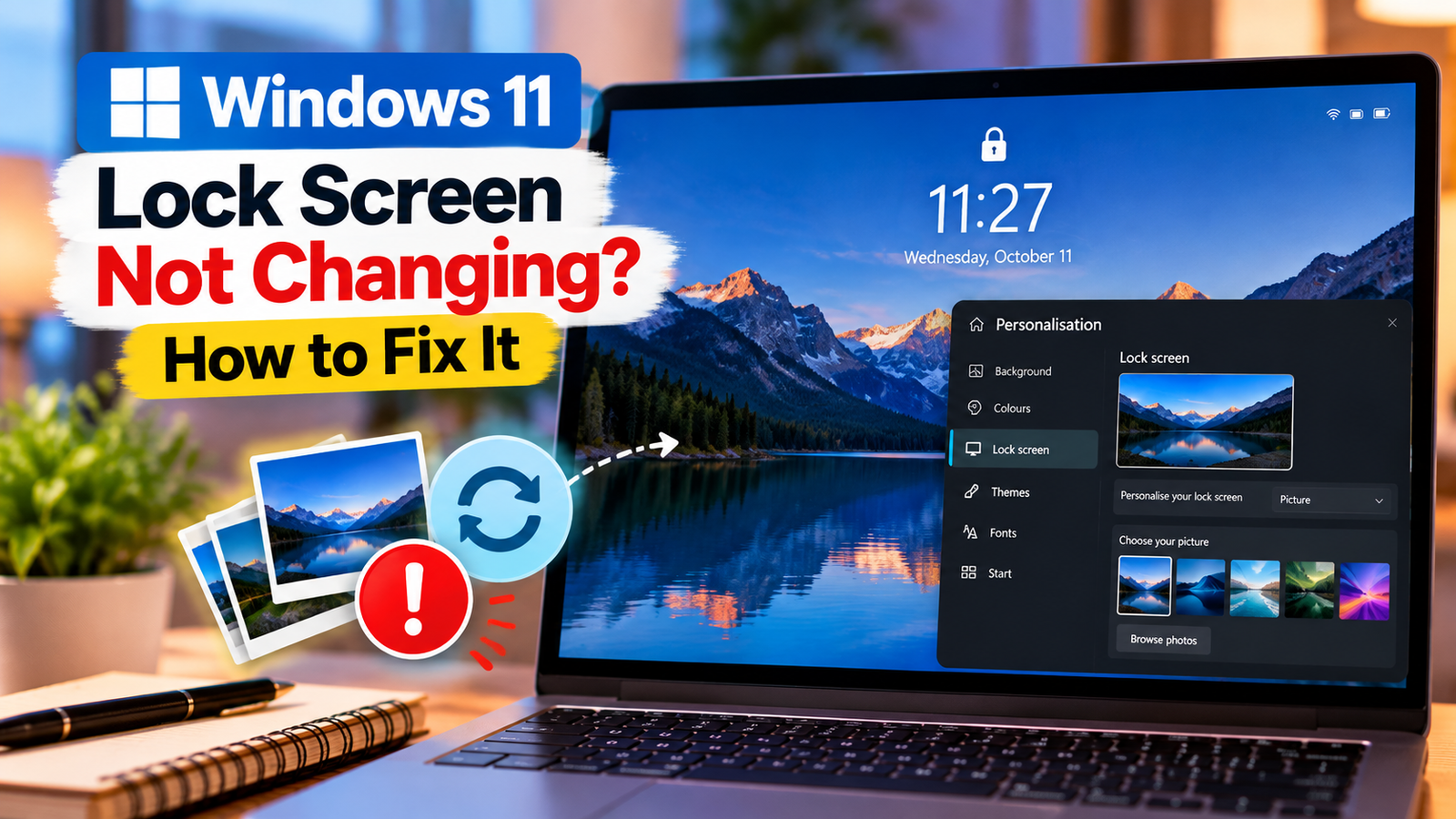
Windows 11 Lock Screen Not Changing? How to Fix It
Windows 11 lock screen not changing can be frustrating when your computer keeps showing the same background, ignores your picture selection or fails to display Windows Spotlight images. The problem may be related to personalisation settings, a disabled Spotlight feature, cached images or a Windows update.
Before changing advanced settings, identify whether the problem affects a custom picture, a slideshow or Windows Spotlight. The right fix depends on which lock screen option you use.
Listen to the quick guide: Windows 11 lock screen not changing
Quick Diagnosis: Start Here
| What you’re seeing | Start with |
|---|---|
| The lock screen keeps showing the same background | Go to Fix 1 ↗ |
| Windows Spotlight images are not changing | Go to Fix 2 ↗ |
| Spotlight is stuck or does not display new images | Go to Fix 3 ↗ |
| The lock screen slideshow is not changing pictures | Go to Fix 4 ↗ |
| The lock screen settings are greyed out or keep reverting | Go to Fix 5 ↗ |
| The lock screen still does not update after the earlier checks | Go to Fix 6 ↗ |
Fix 1: Check Your Lock Screen Personalisation Settings
Start by confirming that Windows is using the lock screen option you actually want.
- Press
Windows + Ito open Settings. - Select Personalisation > Lock screen.
- Open the dropdown next to Personalize your lock screen.
- Choose Windows Spotlight, Picture or Slideshow, depending on your preference.
- If you selected Picture, choose an image using the available browsing option.
- Press
Windows + Lto lock your computer and check the result.
If you select Picture but Windows Spotlight remains active, or vice versa, the screen may not display the background you expect.
If the new image appears correctly, the issue was likely related to the selected personalisation option. If the old background remains, continue with the next fix.
Fix 2: Test Whether Windows Spotlight Is the Problem
Windows Spotlight can display changing images and other information on the lock screen. If Spotlight stops updating, the background may appear stuck.
To test it:
- Open Settings > Personalisation > Lock screen.
- If Windows Spotlight is selected, change the setting to Picture.
- Choose a picture stored on your computer.
- Press
Windows + Lto check whether the picture appears. - If the picture works, return to Lock screen settings and select Windows Spotlight again.
This test helps distinguish a general lock screen problem from an issue specific to Spotlight.
If a custom picture works but Spotlight does not refresh its images, focus on Spotlight settings and the connection-related checks later in this guide.
Fix 3: Check Your Internet Connection and Spotlight Options
Windows Spotlight may need an internet connection to retrieve new images and related content. If the connection is unavailable or Spotlight-related options are restricted, updates may not appear as expected.
- Confirm that your computer can access the internet.
- Open Settings > Personalisation > Lock screen.
- Check that Windows Spotlight is selected if you want rotating images.
- Review any available options for lock screen tips, facts or related content.
- Lock your computer and check whether the display changes over time.
A successful internet connection does not guarantee that Spotlight will refresh immediately. Windows may keep the current image for a while before displaying another one.
If a custom picture works consistently while Spotlight remains stuck, the problem is more likely to involve Spotlight than the lock screen itself.
Fix 4: Check Slideshow Settings
If you use a slideshow, Windows needs access to the folder containing your selected images. A missing folder or incorrect selection can prevent the background from changing as expected.
- Open Settings > Personalisation > Lock screen.
- Select Slideshow from the personalisation dropdown.
- Review the selected picture folder.
- Confirm that the folder still exists and contains supported image files.
- If necessary, remove the current folder selection and choose the correct folder again.
- Lock your computer and check the background.
If the folder was moved, renamed or deleted, Windows may no longer have access to the pictures you intended to use.
Keep the images in a stable folder rather than moving them frequently. If the slideshow still does not change, check the available slideshow options and continue with the next fix.
Fix 5: Check Whether a Work or School Policy Controls the Lock Screen
Some Windows devices are managed by an employer, school or other organization. These devices may restrict personalisation settings or enforce a specific lock screen image.
Look for these signs:
- The lock screen dropdown is greyed out.
- You cannot select a different picture.
- Your chosen image changes back after restarting.
- A message indicates that some settings are managed by your organization.
If you use a work or school computer, contact the IT administrator to check whether a policy controls the lock screen.
On a personal computer, check whether it is still enrolled in workplace management software or has other administrative restrictions. Do not attempt to bypass a managed-device policy by editing the registry.
Fix 6: Restart Windows and Install Relevant Updates
A temporary Windows issue may affect the personalisation interface or lock screen behavior. Restarting and checking for applicable updates are reasonable next steps.
- Save your open work.
- Select Start > Power > Restart.
- Once Windows loads, open Settings > Windows Update.
- Select Check for updates.
- Install applicable updates and restart if prompted.
- Return to Personalisation > Lock screen and test your selected background.
If the problem began after a particular update, note its name and installation date. That information can help if further troubleshooting is needed.
Avoid uninstalling updates without a clear reason. If other personalisation features are also failing, investigate whether the issue affects Windows more broadly.
What If the Lock Screen Still Shows the Same Image?
Use the symptoms to decide what to investigate next:
- A custom picture works, but Spotlight does not update: Check Spotlight settings and internet connectivity.
- A picture appears, but a slideshow does not change: Verify the selected folder and its contents.
- The lock screen dropdown is unavailable: Check for administrator or organizational restrictions.
- The background changes back after restarting: Confirm the selected personalisation mode and whether a policy is enforcing the background.
- Nothing changes regardless of the selected option: Restart Windows, check updates and investigate whether other personalisation settings are affected.
Remember that pressing Windows + L locks the computer and lets you preview the lock screen. It is different from signing out or restarting, so use it first when testing background changes.
Final Thoughts
When the Windows 11 lock screen stops changing, begin by checking whether Picture, Slideshow or Windows Spotlight is selected. Testing a custom picture is especially useful because it helps determine whether the problem is with personalisation generally or Spotlight specifically.
If the background remains stuck, check the slideshow folder, internet connection, managed-device restrictions and applicable Windows updates. These steps help narrow down the cause without unnecessary registry edits or advanced system changes.






