
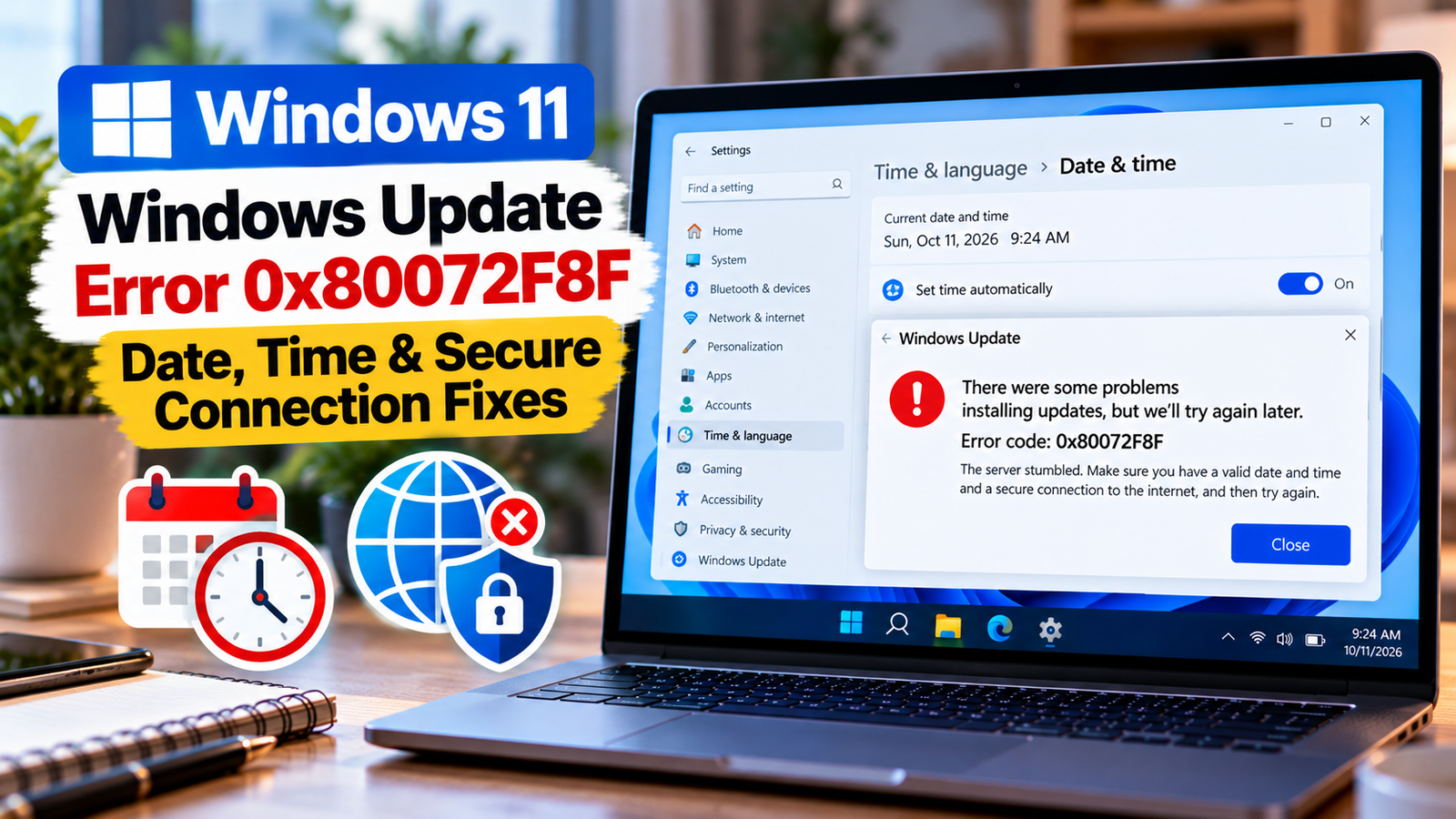
Windows Update Error 0x80072F8F: How to Fix Date, Time and Connection Problems
Windows Update error 0x80072F8F can appear when Windows encounters a problem establishing or validating a secure connection. An incorrect date or time, certificate validation issues, or a connection configuration problem may prevent Windows from communicating successfully with an update service.
You might see the error while checking for updates, downloading an update, or attempting a Windows upgrade. The exact cause can vary, so changing advanced security settings straight away is not the best first step.
Listen to the quick guide: Windows Update error 0x80072F8F
Work through the checks below in order. Start with your PC’s clock and network, then investigate connection settings and Windows system files only if the simpler checks do not help.
Quick Diagnosis: Start Here
| What you’re seeing | Start with |
|---|---|
| Your PC date, time, or time zone may be incorrect | Go to Fix 1 ↗ |
| Windows Update fails even though you have internet access | Go to Fix 2 ↗ |
| You use a VPN or proxy connection | Go to Fix 3 ↗ |
| The error continues after checking your connection | Go to Fix 4 ↗ |
| You also see certificate or secure-connection warnings elsewhere | Go to Fix 5 ↗ |
| Basic checks have not resolved the error | Go to Fix 6 ↗ |
| The PC is managed or certificate errors keep returning | Go to Fix 7 ↗ |
Why does error 0x80072F8F occur?
This error is associated with secure communication and certificate validation problems. Windows needs a valid, trusted connection to the service it is contacting.
Possible causes include:
- An incorrect system date, time, or time zone.
- A network connection that is being interrupted or filtered.
- Proxy or VPN settings interfering with the connection.
- A managed work or school network that requires specific configuration.
- A certificate, security, or Windows configuration problem.
The code alone does not prove that your computer’s clock is wrong. Use the following checks to narrow down the cause.
Fix 1: Correct the date, time and time zone
An incorrect system clock can interfere with certificate validity checks. This is one of the simplest things to verify before changing anything else.
- Open Settings.
- Select Time & language > Date & time.
- Turn on Set time automatically, if available.
- Confirm that the selected time zone matches your location.
- Select Sync now if the option is available.
- Restart the PC and try Windows Update again.
If your computer’s clock repeatedly becomes incorrect after shutdown, investigate why it is losing the correct time rather than repeatedly adjusting it manually.
If the date and time are already correct, move to the network checks.
Fix 2: Check whether your internet connection is the problem
A browser opening websites successfully does not guarantee that every Windows Update connection is working correctly. Network filtering, interruptions, or a restricted connection can affect particular services.
Try these checks:
- Open a few reliable websites to confirm that the internet is working.
- Restart your router if other devices are also experiencing connection problems.
- If possible, connect your PC to another trusted network.
- Pause large downloads temporarily and retry Windows Update.
- If you use a VPN, disconnect it briefly if your network policy permits this, then test again.
If Windows Update works on another network, the original network may be filtering or interrupting the connection. On a company-managed PC, contact the network administrator instead of changing managed security settings.
Fix 3: Check VPN and proxy configuration
A VPN or proxy can change how Windows connects to online services. An incorrect or outdated configuration may interfere with secure connections.
Check proxy settings
- Open Settings.
- Go to Network & internet > Proxy.
- Review the automatic and manual proxy settings.
- If your PC is personally managed and you recognize a proxy setting that you no longer need, correct it or turn it off.
- Retry Windows Update.
Do not disable a proxy required by your employer, school, or internet provider. If the setting is managed or you are unsure why it is enabled, ask the administrator before changing it.
Check your VPN
If you use a VPN, disconnect it temporarily only when doing so is permitted and safe. Try Windows Update again, then reconnect it.
If the error disappears only when the VPN is disconnected, investigate the VPN configuration rather than leaving security or workplace protections disabled.
Fix 4: Run the Windows Update troubleshooter
Windows includes tools that can identify common update problems. On Windows 11, the Windows Update troubleshooter is available through the Get Help app and Settings, depending on the current Windows version.
On Windows 11:
- Open Settings > System > Troubleshoot > Other troubleshooters.
- Find Windows Update.
- Select Run, if the option is available.
- Follow the instructions and apply any recommended corrections.
- Restart the PC if prompted.
On Windows 10, open Settings > Update & Security > Troubleshoot > Additional troubleshooters, then run the Windows Update troubleshooter if available.
Try checking for updates again. If the error remains, continue to the next check.
Fix 5: Check whether the problem affects other secure connections
If the date and time are correct and the network appears to be working, check whether the issue is limited to Windows Update.
- Can you open other secure websites without certificate or privacy warnings?
- Does the error occur only on this PC?
- Does Windows Update fail on more than one trusted network?
- Did the problem begin after installing security software, changing network settings, or joining a work or school network?
These observations help narrow the cause. If several secure services fail, the issue may extend beyond Windows Update.
Do not bypass certificate warnings or install certificates from untrusted sources to make the connection work. If the PC is managed by an organization, its administrator may need to investigate certificate or network policies.
Fix 6: Repair Windows system files if the error persists
If the clock and network checks do not resolve the issue, check whether Windows has damaged system files. These commands are not specific fixes for every 0x80072F8F case, but they can help identify and repair certain Windows corruption problems.
- Open Start and type
Command Prompt. - Select Run as administrator.
- Enter the following command:
DISM.exe /Online /Cleanup-Image /RestoreHealth- Wait for the operation to complete.
- Then run:
sfc /scannow- Wait for the scan to finish and review the result.
- Restart your PC if repairs were completed, then retry Windows Update.
If DISM reports that it cannot find source files or either command returns an error, record the full message. Do not assume that system-file corruption is the cause of every secure-connection error.
Fix 7: Investigate managed devices and persistent certificate errors
If you use a work or school computer, or the error persists across trusted networks with the correct time, the problem may involve a managed proxy, certificate configuration, or security policy.
At this stage:
- Note the exact error message and when it appears.
- Check whether the device is connected to a work or school account.
- Record any recent changes to VPN, security software, or network configuration.
- Contact your IT administrator if the device or connection is managed.
Avoid making registry edits, disabling certificate validation, or weakening TLS security settings based on the error code alone. Those changes can introduce security risks and may not address the underlying issue.
If this is a personal PC and the problem continues, use Windows’ built-in recovery and support options to investigate further before considering a repair installation.
Frequently asked questions
What does Windows Update error 0x80072F8F mean?
It is associated with a problem involving secure communication or certificate validation. An incorrect system clock, network configuration, or another security-related issue may be responsible. The code alone does not identify one definite cause.
Can changing the date and time fix error 0x80072F8F?
It can help if the clock or time zone is incorrect and that is affecting certificate validation. If the clock is already correct, investigate the network and other connection settings instead.
Should I turn off my antivirus to fix this error?
Do not routinely disable antivirus protection. First check the clock, connection, VPN and proxy settings. If you suspect security software is interfering with Windows Update, use its supported diagnostic options or contact the provider or your IT administrator.
Is error 0x80072F8F the same as a Windows Update component-store error?
No. The two types of errors point towards different areas of troubleshooting. This code is associated with secure connections and certificate validation, while component-store errors generally concern Windows servicing components. Use the exact code and message to guide your next step.
What if Windows Update still fails after all these checks?
Record the complete error message, the update or upgrade you were attempting, and whether other secure connections work. This information can help determine whether the issue lies with Windows, the network, certificate configuration, or a managed device policy.
Final thoughts
Windows Update error 0x80072F8F does not always mean Windows itself is damaged. Start by correcting the date and time, then test the connection and review VPN or proxy settings. If the problem persists, use the Windows Update troubleshooter and check system files.
If the error appears to involve certificates or a managed network, investigate the underlying configuration rather than bypassing security protections. That approach is safer and more likely to identify the real cause.






