
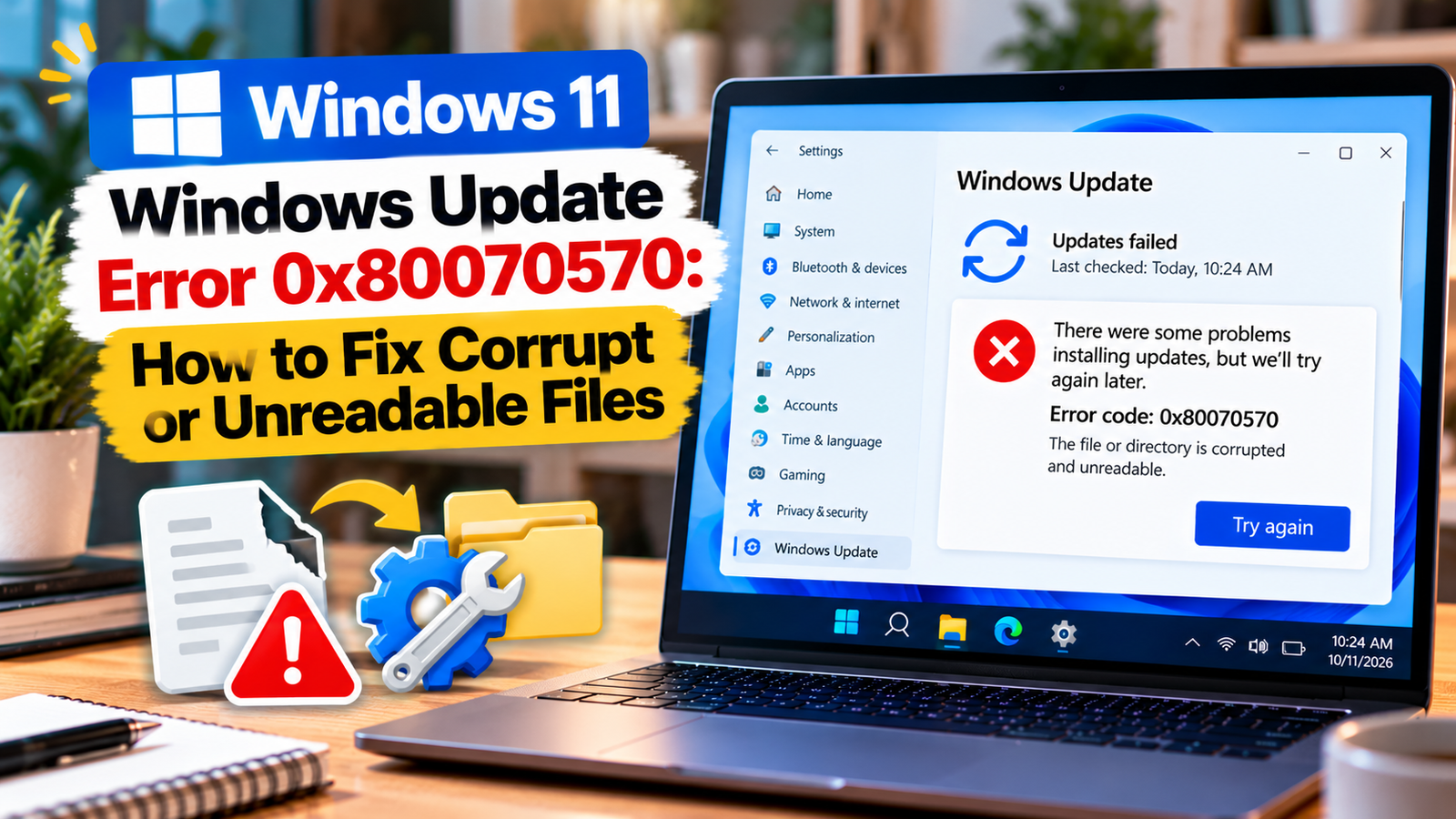
Windows Update Error 0x80070570: How to Fix Corrupt or Unreadable Files
Windows Update error 0x80070570 can appear when Windows cannot read or process a file required for an update. The installation may stop partway through, fail repeatedly, or display an error after downloading an update.
The code is associated with a file that may be corrupt or unreadable, but it does not automatically mean your hard drive is failing. A damaged update download, a problem with Windows system files, or a storage issue can produce different symptoms that need to be checked separately.
This guide helps you identify where the failure may be occurring before you attempt more involved repairs.
Listen to the quick guide: Windows Update error 0x80070570
Quick Diagnosis: Start Here
| What you’re seeing | Start with |
|---|---|
| The update failed once and has not been retried | Go to Fix 1 ↗ |
| You need to identify whether one update or several are failing | Go to Fix 2 ↗ |
| Windows Update continues to fail after restarting | Go to Fix 3 ↗ |
| The same update download may be damaged or incomplete | Go to Fix 4 ↗ |
| Windows system files may be damaged | Go to Fix 5 ↗ |
| Other files are also failing to open or read | Go to Fix 6 ↗ |
| The error persists after the basic repair steps | Go to Fix 7 ↗ |
What causes Windows Update error 0x80070570?
The error can occur when Windows encounters a file it cannot read or process correctly. Possible explanations include:
- An incomplete or damaged update download.
- A Windows file that is missing or corrupted.
- A storage device experiencing read errors.
- A problem affecting one particular update package.
- A broader Windows servicing issue.
The most useful clue is whether the error appears with one update or several different updates. If it occurs repeatedly across unrelated updates, investigate Windows and storage health rather than repeatedly downloading the same package.
Fix 1: Restart the PC and retry the failed update
Start with a clean restart. This clears temporary operating conditions and allows Windows to resume pending update activity.
- Save your work and close open applications.
- Open Start > Power > Restart.
- Once Windows loads, open Settings > Windows Update.
- Select Check for updates and retry the failed installation.
If the update installs normally, you may not need any further troubleshooting.
If error 0x80070570 appears again, note whether the same update fails at the same stage. That detail can help distinguish an update-specific problem from a wider system issue.
Fix 2: Identify the update that is failing
Before changing Windows settings, find out whether the failure is limited to one update.
- Open Settings > Windows Update.
- Open Update history to review recent installation attempts.
- Note the update name and its KB number, if shown.
- Check whether other updates are installing successfully.
If only one update fails, the downloaded package or a requirement specific to that update may be involved. If several updates fail with the same code, continue with the broader checks below.
Do not repeatedly download installation packages from unofficial websites. If a manual installation becomes necessary, use Microsoft’s official update resources and confirm that the package matches your Windows version and system architecture.
Fix 3: Run the Windows Update troubleshooter
The built-in troubleshooter can identify some common problems with Windows Update and attempt to correct them.
On Windows 11:
- Open Settings > System > Troubleshoot > Other troubleshooters.
- Find Windows Update.
- Select Run, if available.
- Follow the instructions and apply any recommended corrections.
- Restart the PC if prompted, then try the update again.
On Windows 10, open Settings > Update & Security > Troubleshoot > Additional troubleshooters and select Windows Update if the option is available.
The troubleshooter may not resolve a genuinely unreadable file, but it is worth running before moving to manual repairs.
Fix 4: Clear the downloaded Windows Update cache
A damaged or incomplete update download can cause installation problems. Clearing the downloaded update cache allows Windows to obtain fresh copies of update files.
Follow these steps carefully.
- Press Windows + R.
- Type
services.mscand press Enter. - Find Windows Update in the Services window.
- Right-click it and select Stop.
- Open File Explorer and navigate to:
C:\Windows\SoftwareDistribution\Download- Delete the contents of the
Downloadfolder, not the folder itself. - Return to Services.
- Right-click Windows Update and select Start.
- Restart the PC and check for updates again.
If Windows will not let you delete a particular file, do not force-delete it or change its permissions. Confirm that the Windows Update service has stopped and leave files that remain in use.
Clearing the download cache removes downloaded update files, not your personal documents. Windows can download the required update files again.
Fix 5: Check Windows system files
If the error continues after refreshing the update download, check whether protected Windows system files are damaged.
Run System File Checker
- Open Start and type
Command Prompt. - Select Run as administrator.
- Enter the following command:
sfc /scannow- Press Enter and wait for the scan to reach 100%.
- Read the final message to see whether Windows found or repaired any integrity problems.
If SFC reports that it repaired files, restart the PC and try Windows Update again.
If it says some files could not be repaired, use DISM to check the Windows component store.
Run DISM if necessary
In the same administrator Command Prompt window, enter:
DISM.exe /Online /Cleanup-Image /RestoreHealthAllow the command to finish. If it completes successfully, run sfc /scannow again and review the result.
These tools can repair certain kinds of Windows corruption, but they cannot guarantee that every unreadable file or storage problem will be resolved.
Fix 6: Check the drive for signs of storage trouble
If error 0x80070570 appears repeatedly, especially alongside other file-reading errors, investigate the drive before continuing with update repairs.
Look for additional symptoms such as:
- Files or folders that repeatedly fail to open.
- Unusual system freezes during file operations.
- Repeated read or copy errors.
- Storage-health warnings from Windows or the drive manufacturer.
If these symptoms occur, back up important personal files before running lengthy repairs. Repeated read errors can indicate a storage problem, although the update code alone does not prove that the drive is failing.
For a basic file-system check, open Command Prompt as an administrator and run:
chkdsk C: /scanThis performs an online scan of the C: drive’s file system. Review the result and follow any recommended next steps.
Do not immediately run repair commands that require a restart if you suspect the drive is failing and your important files are not backed up. prioritize preserving your data and seek professional help if the drive reports serious errors or becomes increasingly unreliable.
Fix 7: Reinstall the specific update or investigate a deeper Windows problem
If other updates install successfully but one particular update continues to fail, check its KB number against Microsoft’s official update information. Confirm that it applies to your Windows version and that any prerequisites are satisfied.
If the same error appears across multiple updates even after the cache and system-file checks, the issue may be broader than one package.
At this stage:
- Record the failed update’s KB number and the full error message.
- Note the results from SFC, DISM, and the drive scan.
- Check whether other file operations are failing.
- Consider a supported Windows repair option if system corruption persists.
Windows 11 offers Fix problems using Windows Update on supported systems under Settings > System > Recovery. This option reinstalls the current Windows version while attempting to preserve apps, files, and settings. Availability depends on the device and its configuration.
Back up important files before attempting a repair installation. Do not jump straight to a clean installation, which can remove applications, settings, and personal data.
Frequently asked questions
What does Windows Update error 0x80070570 mean?
The code is associated with a corrupt or unreadable file. During Windows Update, that may involve an update package or a file Windows needs to process. The code alone does not identify the exact file or prove that the drive is damaged.
Will clearing the Windows Update cache delete my personal files?
Clearing the contents of the Windows Update download cache removes downloaded update files, not personal documents, photos, or other files stored in your user folders. Windows can download the required update files again.
Can SFC fix error 0x80070570?
SFC can repair certain damaged protected Windows system files. If the issue is caused by a corrupt download or a storage device problem, SFC alone may not resolve it.
Does this error mean my hard drive is failing?
Not necessarily. A damaged update download or Windows file can also trigger this error. However, repeated file-reading errors, storage warnings, or failures outside Windows Update warrant a drive-health check and a backup of important data.
What should I do if the error keeps returning?
Identify whether one update or several updates are failing. Refresh the update download, check Windows system files, and investigate storage health if other file operations are also affected. If the problem persists, keep the error details and repair results for further diagnosis.
Final thoughts
Windows Update error 0x80070570 can involve an unreadable file, but the right fix depends on where the failure occurs. Begin by identifying the failed update, then refresh its downloaded files and check Windows system integrity.
If the error keeps returning or other files are becoming difficult to read, back up important data and investigate storage health before attempting more extensive repairs.






