
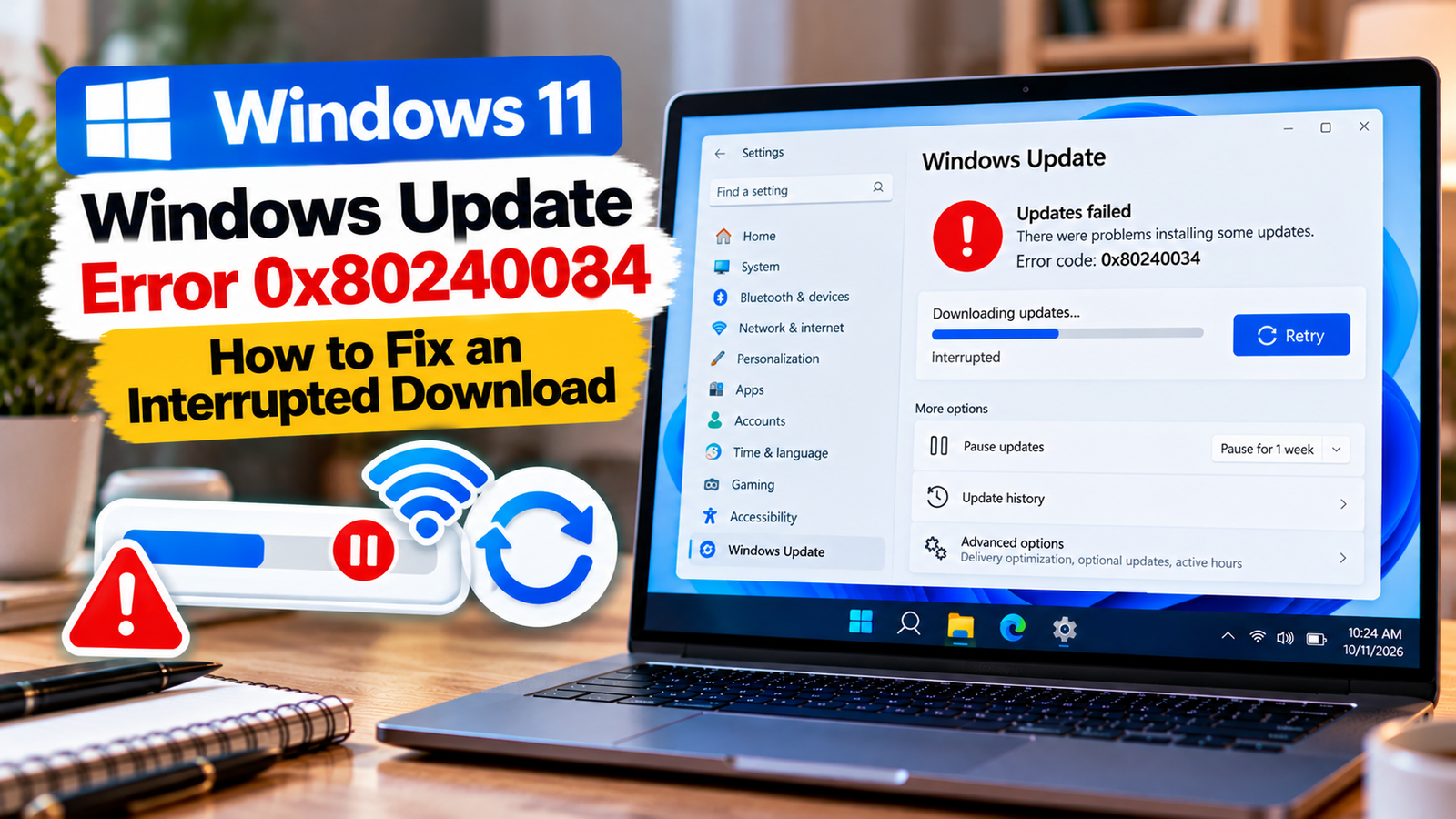
Windows Update Error 0x80240034: How to Fix an Interrupted Download
Windows Update error 0x80240034 appears when Windows cannot complete an update download. The update may remain pending, fail during downloading, or return the same error when you try again.
Microsoft identifies this code with a failed update download. An unstable connection, an interrupted download, or a problem communicating with the update service may be involved. The code does not automatically mean your Windows installation is damaged.
Rather than immediately resetting Windows Update or running multiple repair commands, start by checking the connection and identifying which update is failing. Then work through the targeted fixes below.
Listen to the quick guide: Windows Update error 0x80240034
Quick Diagnosis: Start Here
| What you’re seeing | Start with |
|---|---|
| The update download failed once | Go to Fix 1 ↗ |
| Downloads keep stopping or restarting | Go to Fix 2 ↗ |
| You use a VPN, proxy or restricted network | Go to Fix 3 ↗ |
| Windows Update continues to fail after basic checks | Go to Fix 4 ↗ |
| The download may have been interrupted or left incomplete files | Go to Fix 5 ↗ |
| Windows Update downloads repeatedly fail and the service may be stopped | Go to Fix 6 ↗ |
| One specific update keeps failing | Go to Fix 7 ↗ |
Why does Windows Update error 0x80240034 occur?
The error indicates that an update download did not complete successfully. Possible contributing factors include:
- An internet connection that drops during the download.
- A temporary interruption in communication with the update service.
- A VPN, proxy, or network configuration interfering with downloads.
- Incomplete update files left behind after an interrupted attempt.
- A Windows Update service that is not operating as expected.
The first step is to determine whether the issue is temporary, network-related, or limited to one update.
Fix 1: Restart the PC and retry the download
A restart is a useful first step if an update has become stuck or a previous installation attempt was interrupted.
- Save your work and close open applications.
- Open Start > Power > Restart.
- Wait for Windows to load completely.
- Open Settings > Windows Update.
- Select Check for updates and try again.
Keep the computer connected to the internet while the update downloads. If it completes successfully, the failure may have been temporary.
If error 0x80240034 returns, continue with the connection checks.
Fix 2: Check whether your internet connection is stable
An internet connection can appear to work normally while still dropping packets or disconnecting briefly during a large download.
Try these checks:
- Open a few websites to confirm that your connection is working.
- If you use Wi-Fi, move closer to the router or try a wired connection if available.
- Restart the router if other devices are also experiencing connection problems.
- Pause large downloads or streaming activity temporarily.
- If possible, test Windows Update on another trusted network.
If the update succeeds on another network, the original connection may be contributing to the failure. If you are using a work or school network, ask the administrator whether update downloads are restricted.
Fix 3: Check VPN, proxy and network restrictions
VPNs and proxy servers can affect how Windows reaches update services. Some managed networks also apply filtering rules that can interrupt downloads.
Review proxy settings
- Open Settings > Network & internet > Proxy.
- Review the automatic and manual proxy settings.
- If this is your personal PC and a proxy setting is no longer required, correct it.
- Retry Windows Update.
Do not disable a proxy required by your organization or network provider. If you do not recognize a setting, confirm its purpose before changing it.
Test your VPN connection
If you use a VPN, disconnect it temporarily only if permitted by your network policy, then retry the download. If the error disappears, investigate the VPN configuration rather than leaving required protections disabled.
Fix 4: Run the Windows Update troubleshooter
Windows includes a troubleshooter that can detect and address some common update problems.
On Windows 11:
- Open Settings > System > Troubleshoot > Other troubleshooters.
- Locate Windows Update.
- Select Run, if available.
- Follow the on-screen instructions.
- Restart the computer if prompted and try the update again.
On Windows 10, go to Settings > Update & Security > Troubleshoot > Additional troubleshooters and select Windows Update if the option is available.
The troubleshooter may not resolve every download failure, but it is worth trying before clearing update files manually.
Fix 5: Clear the downloaded update files
If the download was interrupted, the existing downloaded files may need to be refreshed. You can clear the Windows Update download cache so Windows can fetch the files again.
Follow these steps carefully.
- Press Windows + R.
- Type
services.mscand press Enter. - Find Windows Update in the Services window.
- Right-click the service and select Stop.
- Open File Explorer and navigate to:
C:\Windows\SoftwareDistribution\Download- Delete the contents of the
Downloadfolder, not the folder itself. - Return to Services.
- Right-click Windows Update and select Start.
- Restart the PC and check for updates again.
If Windows refuses to delete a file, do not force-delete it or change its permissions. Check that the service has stopped and leave files that remain in use.
This step removes downloaded update files, not your personal documents. Windows can download the required files again.
Fix 6: Check that the Windows Update service is running
If downloads repeatedly fail, check whether the Windows Update service is running.
- Press Windows + R.
- Enter
services.mscand press Enter. - Find Windows Update.
- Check its status.
- If the service is stopped, select Start if that option is available.
- Retry Windows Update.
Windows manages the startup behavior of its services, and the expected settings can vary. Avoid changing multiple services to Automatic or modifying service permissions without a specific reason.
If the service will not start or stops repeatedly, note any error message. That may indicate a separate service or system problem that needs targeted troubleshooting.
Fix 7: Identify the failed update and use Microsoft’s official package if needed
If the same update continues to fail, identify it before trying a manual installation.
- Open Settings > Windows Update.
- Review the update entry or update history.
- Record the update name and its KB number, if shown.
- Check whether other updates download successfully.
- Search Microsoft’s official update information for the relevant KB number.
If you decide to install the update manually, use Microsoft’s official update resources and confirm that the package matches your Windows version and system architecture.
Do not download update packages from unfamiliar websites. If multiple unrelated updates fail even after the connection and cache checks, further investigation of Windows Update may be necessary rather than repeatedly installing packages manually.
Frequently asked questions
What does Windows Update error 0x80240034 mean?
It indicates that an update download failed to complete. A connection interruption, incomplete download, or communication problem may be involved. The code alone does not establish the exact cause.
Is error 0x80240034 caused by a slow internet connection?
Not necessarily. An unstable connection can interrupt a download, but the issue may also involve network restrictions, a proxy, or the update service. Check whether the problem affects one update or several before deciding what to change.
Will clearing the Windows Update download cache delete my files?
Clearing the contents of the Windows Update Download folder removes downloaded update files, not personal documents or photos. Windows can fetch the necessary update files again.
Should I run DISM and SFC for error 0x80240034?
Not as the first step. This error is associated with a failed download, so check the connection, run the troubleshooter, and refresh the download cache first. Consider DISM and SFC if there is additional evidence of Windows system-file corruption or other persistent system problems.
What if only one update keeps failing?
Record its KB number and check the relevant update information from Microsoft. If other updates download successfully, focus on that specific package and its requirements instead of resetting unrelated Windows settings.
Final thoughts
Windows Update error 0x80240034 usually calls for a download-focused troubleshooting approach. Restart the PC, check the connection, investigate VPN or proxy restrictions, and refresh the downloaded update files if necessary.
If the same update continues to fail, identify its KB number and use Microsoft’s official update resources. This helps narrow down the issue without making unnecessary changes to Windows.






