
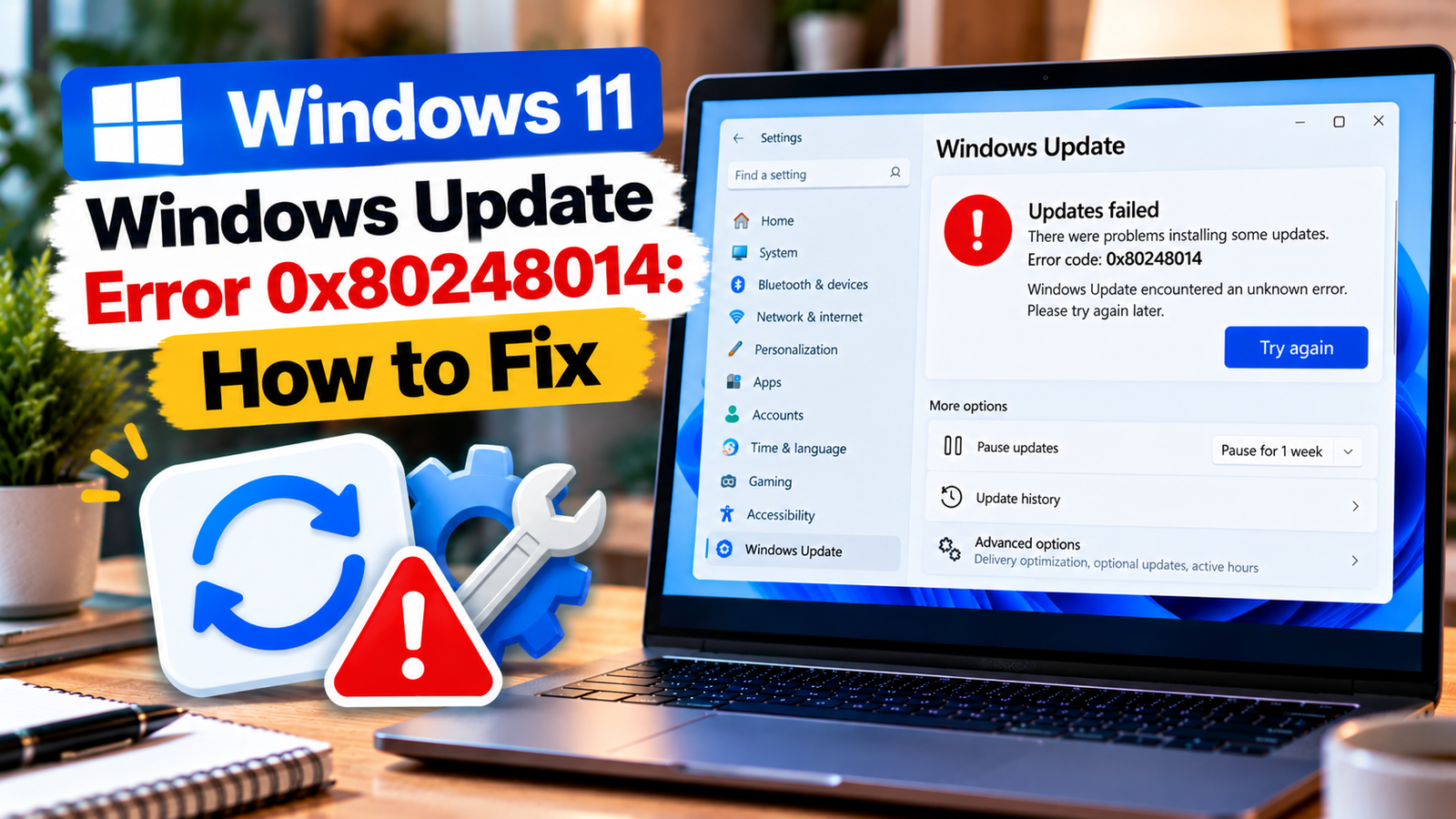
Windows Update Error 0x80248014: How to Fix Database or Service Problems
Windows Update error 0x80248014 can appear when Windows cannot properly access its update database or a required update service is not running. You may see the error while checking for updates, downloading an update, or installing one. The code does not identify a single cause, so the best approach is to check the update services first and then repair the local update components if needed.
This guide walks you through the checks in order, starting with the least disruptive options. Follow them one at a time and try Windows Update again after each major change.
Listen to the quick guide: Windows Update error 0x80248014
Quick Diagnosis: Start Here
| What you’re seeing | Start with |
|---|---|
| Error 0x80248014 appears after restarting or checking for updates | Go to Fix 1 ↗ |
| Windows Update may be unable to start or run its background service | Go to Fix 2 ↗ |
| The update error persists and Windows has not been checked for common update problems | Go to Fix 3 ↗ |
| The service runs, but update downloads or local update data may be stuck | Go to Fix 4 ↗ |
| The error continues after refreshing the update cache | Go to Fix 5 ↗ |
| One particular update keeps failing, or the KB number is unclear | Go to Fix 6 ↗ |
| The computer is managed by an employer or school | Go to Fix 7 ↗ |
What Does Error 0x80248014 Mean?
Error 0x80248014 is associated with a problem involving the Windows Update database or an update service that is not running correctly.
Possible causes include:
- The Windows Update service is stopped or unable to start.
- Local update data is damaged or inconsistent.
- Windows Update components are not working as expected.
- A system-file problem is interfering with the update process.
- A work or school device is using update policies managed by an organization.
The error alone does not prove that Windows itself is corrupted. Start with service checks before attempting more involved repairs.
Fix 1: Restart Your PC and Retry Windows Update
A pending restart or an update operation that has not finished can sometimes interfere with another update attempt.
- Save your open work.
- Open Start > Power > Restart.
- Wait for Windows to load completely.
- Open Settings > Windows Update.
- Select Check for updates.
If the update installs successfully, check Windows Update history to confirm that it completed.
If error 0x80248014 returns, continue to the service checks below.
Fix 2: Check Whether the Windows Update Service Is Running
Windows relies on background services to detect, download and install updates. If the Windows Update service is stopped or cannot start, checking its status is a useful next step.
- Press Windows + R.
- Type
services.mscand press Enter. - Find Windows Update in the list.
- Double-click it to open its properties.
- Check the service status.
If the service is stopped and the Start option is available, select Start. If it is already running, select Stop, wait a few seconds, and then select Start.
Do not force a change to the startup type if the setting is managed by your organization or you are unsure why it was configured that way.
Close the Services window and try Windows Update again.
What if the service will not start? Note any message displayed. A service-start failure may require further investigation rather than repeated attempts to start it.
Fix 3: Run the Windows Update Troubleshooter
The built-in troubleshooter can identify some common update problems and apply recommended repairs.
On Windows 11:
- Open Settings.
- Select System > Troubleshoot > Other troubleshooters.
- Find Windows Update.
- Select Run and follow the instructions.
Depending on your Windows version, the troubleshooter may open through the Get Help app instead.
When it finishes, restart the PC if prompted and check for updates again. If the troubleshooter reports that it could not identify or resolve the problem, proceed to the next step.
Fix 4: Refresh the Windows Update Cache
If the Windows Update service is running but the same error keeps returning, local update data may need to be refreshed.
This procedure stops the update service, renames its download-cache folder and allows Windows to create a fresh one. Previously downloaded update files may need to be downloaded again.
- Press Windows + R, type
services.msc, and press Enter. - Find Windows Update, right-click it and select Stop.
- Open File Explorer and navigate to:
C:\Windows\SoftwareDistribution\Download - Delete the files and folders inside the Download folder. Do not delete the
SoftwareDistributionfolder itself. - Return to Services, right-click Windows Update, and select Start.
- Restart your PC and try checking for updates again.
You may need administrator permission to complete these steps. If the service cannot be stopped, or Windows reports that a file is in use, do not forcibly delete the files. Restart the PC and investigate the service problem first.
Fix 5: Repair Windows System Files
If the service is running and refreshing the download cache has not helped, check whether damaged Windows system files are contributing to the failure.
Use the built-in DISM and System File Checker tools.
- Open Start and search for Command Prompt.
- Right-click it and select Run as administrator.
- Run this command:
DISM.exe /Online /Cleanup-Image /RestoreHealth - Wait for the operation to finish. It may take several minutes.
- Next, run:
sfc /scannow - Allow the scan to reach completion.
- Restart the computer and retry Windows Update.
Keep the computer connected to power while the checks run. DISM may use Windows Update or another configured repair source to obtain files. If either command reports an error, record the exact message rather than repeatedly running the same command without investigating it.
Fix 6: Check Whether the Problem Affects One Update or All Updates
The update that triggers the error can help narrow down the next step.
- Open Settings > Windows Update > Update history.
- Identify the update that failed, including its KB number if shown.
- Check whether other updates are also failing.
- Retry the failed update after the earlier repairs.
If only one update repeatedly fails, investigate that specific update and your Windows version before making further system changes. For an applicable cumulative update, you may be able to obtain the matching package through the Microsoft Update Catalog.
Make sure the package matches your Windows version and system architecture. Do not install a package simply because its KB number looks similar.
If several updates continue to fail with the same code, the underlying update service, local update data or system configuration may still need attention.
Fix 7: Check for Work or School Update Policies
If this is a company-managed or school-managed computer, Windows may be configured to receive updates through an organization’s update server or management system.
In that situation, changing service settings or repeatedly resetting update components may not solve the underlying issue.
Check whether:
- The device is connected to the organization’s network or required VPN.
- Other managed computers are experiencing the same problem.
- Windows Update settings indicate that some options are managed by your organization.
- Your IT administrator has recently changed update policies.
If the computer is managed, contact your IT administrator with the error code and the name of the update that failed. Avoid changing organization-controlled settings yourself.
When Should You Seek Further Help?
If error 0x80248014 persists after the service check, troubleshooter and cache refresh, record the failed update’s KB number, the Windows version and any error messages from the repair commands.
A persistent failure may need a more targeted diagnosis. Repeating the same cache reset or immediately reinstalling Windows is not the best next step without additional evidence.
Final Checks
Before trying another repair, confirm that:
- Windows has been restarted after the troubleshooting steps.
- The Windows Update service can start normally.
- The troubleshooter has completed.
- The download cache has been refreshed if appropriate.
- DISM and SFC have finished if system-file repair was needed.
- The failed update and any repeated error messages have been identified.
The goal is to determine whether the failure comes from the update service, local update data or a broader system or management issue. Working through these checks in order can help you choose a more targeted next step without making unnecessary changes to Windows.






