
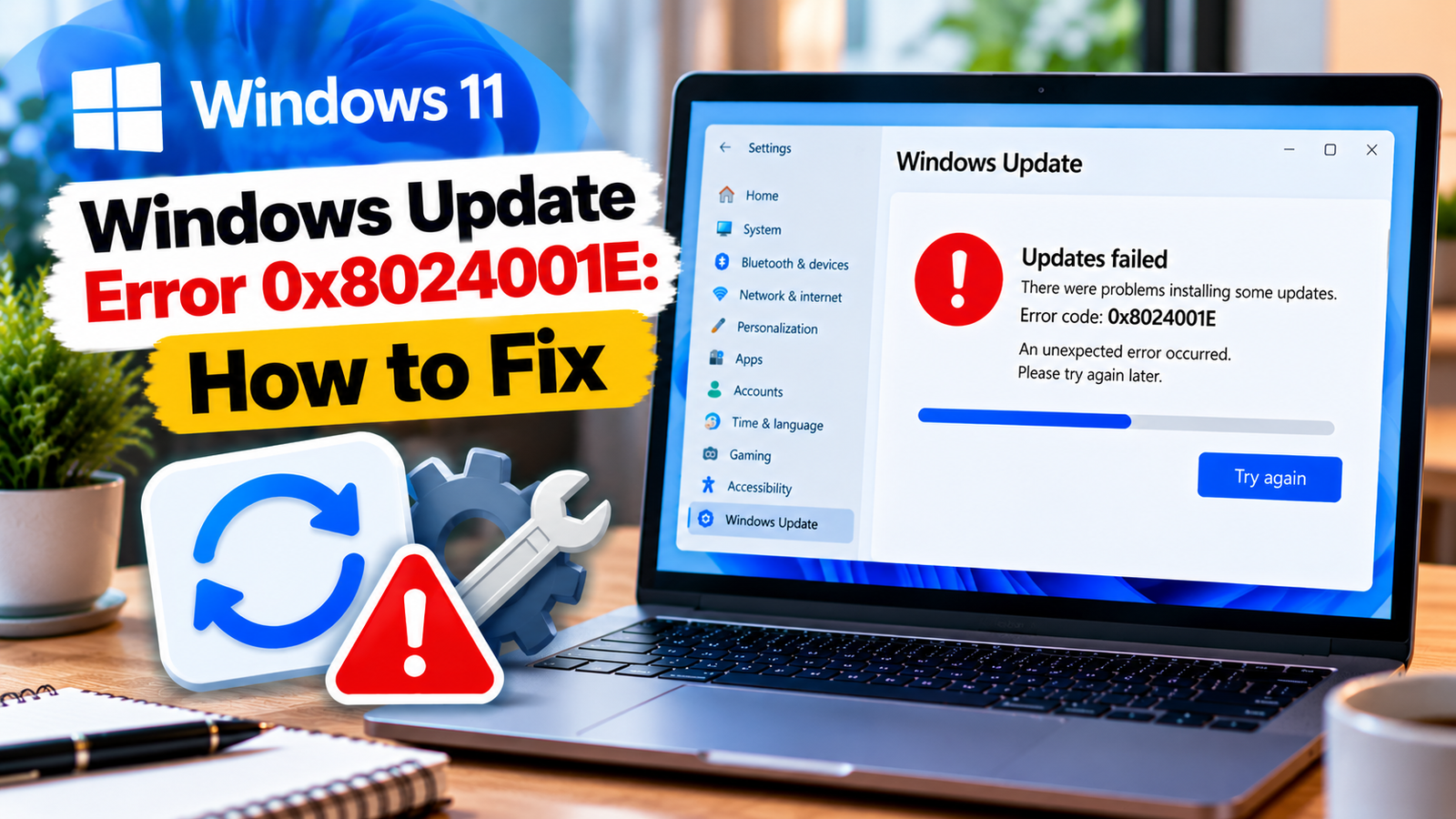
Windows Update Error 0x8024001E: How to Fix an Interrupted Update
Windows Update error 0x8024001E can appear when an update fails to complete, sometimes after an unexpected restart, a temporary connection problem or an interruption involving Windows Update services. The error can have several causes, so repeatedly retrying the same update may not help.
This guide helps you narrow down the problem first. You will check for pending restarts, available storage, update services and failed update details before moving to more involved repairs.
Listen to the quick guide: Windows Update error 0x8024001E
Why Does Windows Update Error 0x8024001E Occur?
The error can be associated with different situations, including:
- An update installation interrupted by a restart or shutdown.
- Unstable internet connectivity during an update.
- Insufficient free space on the Windows drive.
- Incomplete or damaged update files.
- A Windows Update service or scheduled task interfering with installation.
- An update source or management problem on a work or school computer.
The code alone does not tell you which cause applies. Start with the checks below and move to the more advanced steps only if the error persists.
Quick Diagnosis: Start Here
| What you’re seeing | Start with |
|---|---|
| The update failed after a restart or shutdown | Go to Fix 1 ↗ |
| The Windows drive is nearly full | Go to Fix 2 ↗ |
| Your internet connection drops or behaves inconsistently | Go to Fix 3 ↗ |
| Windows Update keeps failing without an obvious cause | Go to Fix 4 ↗ |
| The Windows Update service may not be running properly | Go to Fix 5 ↗ |
| The update may have downloaded incomplete or damaged files | Go to Fix 6 ↗ |
| The error continues after the basic troubleshooting steps | Go to Fix 7 ↗ |
| The same update fails repeatedly or installation appears interrupted | Go to Fix 8 ↗ |
Fix 1: Restart Windows and Check for Pending Updates
A restart can complete an earlier installation and clear a pending restart that is preventing another update from proceeding.
- Save your open files.
- Select Start > Power > Restart.
- Let Windows load completely.
- Open Settings > Windows Update.
- Select Check for updates.
Choose Restart rather than Shut down and immediately powering the PC back on, particularly if Fast Startup is enabled.
If the update completes, open Update history to confirm its status. If error 0x8024001E appears again, continue to the next check.
Fix 2: Make Sure the Windows Drive Has Enough Free Space
Windows needs working space to download, unpack and install updates. A drive that is nearly full can cause an update to fail.
- Open File Explorer.
- Select This PC.
- Check the available space on the drive containing Windows, usually
C:. - If space is low, open Settings > System > Storage.
- Review temporary files and other storage categories.
- Remove only files you recognize and no longer need, or move personal files to another storage location.
Avoid deleting unfamiliar folders inside C:\Windows. If you are installing a major update, you may need substantially more free space than a small cumulative update requires.
Restart the PC and try the update again.
Fix 3: Check Your Internet Connection and Update Progress
A connection that repeatedly drops can interrupt an update. However, not every instance of this error is network-related.
Try these checks:
- Confirm that websites load normally in your browser.
- If possible, switch from Wi-Fi to a reliable Ethernet connection.
- Pause large downloads or streaming activity while the update runs.
- If you use a VPN or proxy, check whether it is required for your connection. On a personal device, you can temporarily disconnect a nonessential VPN and retry.
- If the problem continues, restart your router if other devices are also experiencing connection issues.
Do not disable Windows Firewall or your security software as a routine first step. If this is a managed device, check with your IT administrator before changing network settings.
Fix 4: Run the Windows Update Troubleshooter
Windows includes a troubleshooter that can detect some common update problems and attempt repairs.
On Windows 11:
- Open Settings > System > Troubleshoot > Other troubleshooters.
- Find Windows Update.
- Select Run and follow the instructions.
On some Windows 11 installations, the troubleshooter opens through the Get Help app.
After it finishes, follow any recommendations it provides. Restart if prompted, then check for updates again.
If the troubleshooter reports that it could not fix the issue, record the result and continue.
Fix 5: Restart the Windows Update Services
If Windows Update repeatedly fails or appears stuck, check whether its supporting services are running.
- Press Windows + R.
- Type
services.mscand press Enter. - Find Windows Update.
- Open its properties and review the service status.
- If the service is stopped and Start is available, select Start.
- Find Background Intelligent Transfer Service (BITS) and check its status too.
Some services start only when needed, so a service that is not continuously running is not automatically faulty. Avoid forcing startup-type changes or changing settings that appear to be managed by your organization.
Close the Services window and retry Windows Update.
If a service refuses to start, note the error message. That information can be more useful than repeatedly attempting to restart it.
Fix 6: Refresh the Windows Update Download Cache
If the basic checks have not helped, incomplete or damaged downloaded update files may be contributing to the failure. Refreshing the download cache makes Windows obtain the required files again.
This procedure requires administrator permission.
- Press Windows + R, type
services.msc, and press Enter. - Find Windows Update, right-click it and select Stop.
- Open File Explorer and navigate to:
C:\Windows\SoftwareDistribution\Download - Delete the contents of the
Downloadfolder, not the folder itself. - Return to Services and start Windows Update again.
- Restart your PC and check for updates.
If Windows says a file is in use or the service cannot be stopped, do not force-delete the files. Resolve the service issue first.
This step may require Windows to download update files again. If the error is caused by an unexpected restart, insufficient storage or an organization-managed update source, clearing the cache may not solve it.
Fix 7: Repair System Files if the Error Keeps Returning
If Windows Update still fails after the earlier checks, use DISM and System File Checker to check for system component problems.
- Open Start and search for Command Prompt.
- Right-click it and select Run as administrator.
- Run:
DISM.exe /Online /Cleanup-Image /RestoreHealth - Wait for the command to finish.
- Then run:
sfc /scannow - Allow the scan to complete.
- Restart the computer and try Windows Update again.
These tools check and repair certain Windows image and system-file problems. They do not guarantee a fix for every update failure. DISM may need access to Windows Update or another configured repair source.
If either command returns an error, record the complete message. Do not interrupt the commands while they are running.
Fix 8: Identify the Failed Update and Check for an Interrupted Installation
If the error continues, stop repeating the same repairs and identify the update that is failing.
- Open Settings > Windows Update > Update history.
- Find the failed update and note its name or KB number.
- Check whether the failure occurred after a forced shutdown, restart or scheduled maintenance.
- Make sure the computer has enough free space and is not likely to restart while the installation is running.
- Retry the update when the PC can remain powered on and connected.
If a specific cumulative update repeatedly fails, check whether the package applies to your Windows version and system architecture. An appropriate package may be available through the Microsoft Update Catalog.
For work or school computers, contact the IT administrator if updates are delivered through a managed update server. On managed systems, a scheduled task or update policy may be involved, and changing those settings without approval can make the problem worse.
Frequently Asked Questions
Is error 0x8024001E always caused by an internet problem?
No. Connectivity interruptions are one possible cause, but the error can also involve incomplete update files, low disk space, unexpected restarts, services or update-management issues.
Will deleting the Windows Update cache remove my personal files?
The procedure described above targets the downloaded update files in the Windows Update cache. It is not intended to delete personal documents, photos or other files. Follow the folder path carefully and do not delete unrelated Windows folders.
Should I download the failed update manually?
Only after identifying the exact update and confirming that the package matches your Windows version and system architecture. Manual installation is not a substitute for diagnosing a recurring service or system problem.
What if error 0x8024001E appears after every restart?
Check Update history to see whether installation is repeatedly interrupted or the same update fails each time. Ensure the computer has adequate free space and can remain powered on through the installation. If the error persists, inspect the service status and repair results rather than repeatedly restarting without further diagnosis.
Can I ignore this Windows Update error?
Ignoring a failed update can leave security fixes or reliability improvements uninstalled. If the error keeps returning, identify the failed update and resolve the underlying issue rather than leaving it indefinitely.
Conclusion
Windows Update error 0x8024001E can result from more than one kind of interruption. Begin with a clean restart, sufficient disk space and a stable connection. Then check the Windows Update services, run the troubleshooter and refresh the update cache if necessary.
If the problem remains, use DISM and SFC, identify the exact failed update and investigate whether a restart, scheduled task or managed update source is involved. This approach helps you narrow down the cause without making unnecessary changes to Windows.






