
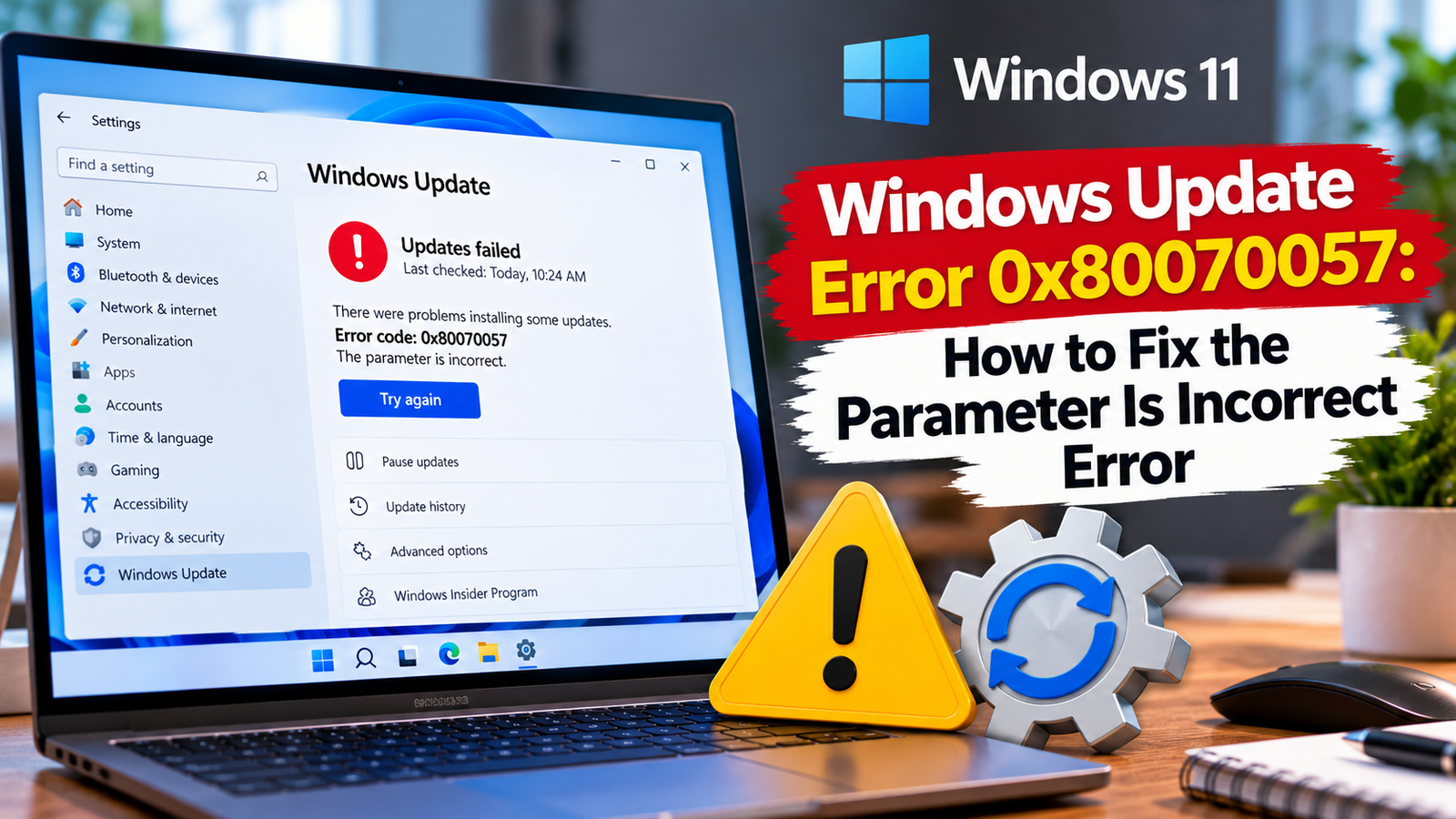
Windows Update Error 0x80070057: How to Fix the Parameter Is Incorrect Error
Windows Update error 0x80070057 means Windows has encountered a problem described as “The parameter is incorrect.” When it appears during an update, the code does not identify one specific cause. Update components, system files or other configuration problems may be involved.
Before changing system settings, identify when the error appears and which update fails. The following steps start with basic checks and progress to more involved repairs.
Listen to the quick guide: Windows Update error 0x80070057
What Causes Windows Update Error 0x80070057?
This error can occur in several Windows operations, including updates, installations and file-related tasks. This guide focuses specifically on cases where it appears in Windows Update.
Possible contributing factors include:
- A failed update attempt or inconsistent update files.
- A Windows Update component that is not working correctly.
- Damaged Windows system files.
- Insufficient available storage or a problem with the system drive.
- A configuration issue that needs further investigation.
The error code alone cannot confirm which cause applies. Follow the steps below and check whether the update succeeds after each relevant repair.
Quick Diagnosis: Start Here
| What you’re seeing | Start with |
|---|---|
| Error 0x80070057 appears after an update attempt or restart | Go to Fix 1 ↗ |
| The Windows drive is nearly full or may have file-system errors | Go to Fix 2 ↗ |
| Windows Update continues to fail without a clear cause | Go to Fix 3 ↗ |
| The error persists and downloaded update files may need refreshing | Go to Fix 4 ↗ |
| System-file problems may be affecting Windows Update | Go to Fix 5 ↗ |
| The same update keeps failing after the earlier checks | Go to Fix 6 ↗ |
Fix 1: Restart Windows and Retry the Failed Update
Start with a normal restart. Windows may have a pending operation that needs to finish before another update can install.
- Save your open work.
- Select Start > Power > Restart.
- Wait for Windows to load.
- Open Settings > Windows Update.
- Select Check for updates.
If the same error returns, open Update history and note which update failed. Record its KB number if one is shown. This information will help you distinguish a single-update problem from a broader Windows Update issue.
Fix 2: Check Available Storage and the System Drive
An update may fail if Windows does not have enough working space or if the system drive has errors.
First, check your available storage:
- Open File Explorer and select This PC.
- Look at the free space on the drive containing Windows, usually
C:. - If space is low, open Settings > System > Storage.
- Review temporary files and remove only items you recognize and no longer need.
Next, you can check the Windows drive for file-system errors.
- Open Start and search for Command Prompt.
- Select Run as administrator.
- Enter:
chkdsk C: /scan - Wait for the scan to finish and read the result.
This command checks the file system for errors without requiring you to schedule a full offline disk check in the usual case. If it reports problems that require further repair, follow the specific instructions provided by Windows. Back up important files before attempting more extensive disk repairs.
Retry Windows Update once the storage or drive issue has been addressed.
Fix 3: Run the Windows Update Troubleshooter
The Windows Update troubleshooter can detect and resolve certain common update problems.
On Windows 11:
- Open Settings > System > Troubleshoot > Other troubleshooters.
- Find Windows Update.
- Select Run and follow the on-screen instructions.
On some systems, the troubleshooter runs through the Get Help app.
When the process finishes, apply any recommended changes and restart if prompted. Then check for updates again.
If the error remains, note whether the troubleshooter identified a problem. A report that no issue was found does not necessarily mean every update component is working correctly.
Fix 4: Reset the Windows Update Download Cache
If the error continues after the basic checks, refresh the downloaded update files. Windows can then download fresh copies when it retries the update.
This step requires administrator permission.
- Press Windows + R.
- Type
services.mscand press Enter. - Find Windows Update, right-click it and select Stop.
- Open File Explorer and navigate to:
C:\Windows\SoftwareDistribution\Download - Delete the contents of the
Downloadfolder, not the folder itself. - Return to Services and start Windows Update again.
- Restart the PC and try checking for updates.
If the service cannot be stopped or Windows reports that a file is in use, do not force-delete it. Resolve the service issue first.
This step clears downloaded update files. It does not repair every possible cause of error 0x80070057, so continue only if the error persists.
Fix 5: Repair Windows System Files
Damaged system files can interfere with Windows maintenance and update operations. DISM and System File Checker are built-in tools that can check and repair certain Windows component and system-file problems.
- Open Start and search for Command Prompt.
- Select Run as administrator.
- Run this command:
DISM.exe /Online /Cleanup-Image /RestoreHealth - Wait for DISM to finish.
- Run:
sfc /scannow - Let the scan complete.
- Restart the computer and retry Windows Update.
DISM may use Windows Update or another configured repair source. If it cannot obtain the required files, the command may fail and need a separate diagnosis.
If either command reports that it found errors it could not repair, record the full message. Avoid repeatedly running the commands without investigating the result.
Fix 6: Identify the Specific Update and Investigate Further
If none of the previous steps works, identify the failed update rather than continuing to repeat the same fixes.
- Open Settings > Windows Update > Update history.
- Locate the failed update and note its KB number.
- Check whether other updates install successfully.
- If only one update fails, confirm that it applies to your Windows version and system architecture.
- If appropriate, look for the matching package in the Microsoft Update Catalog.
Do not download a package simply because its number looks similar. Verify that it is intended for your version of Windows before installing it manually.
If multiple updates fail with the same error, further investigation of Windows Update components, system configuration or the system drive may be needed.
For a work or school computer, check with your IT administrator before changing update policies or managed settings.
When Should You Seek Additional Help?
If error 0x80070057 continues after these steps, collect the following details:
- The exact update name or KB number.
- Your Windows version.
- Whether one update or several updates fail.
- The result of the Windows Update troubleshooter.
- Any errors reported by DISM, SFC or the disk scan.
These details help narrow down the problem and avoid unnecessary registry changes, repeated cache resets or a premature Windows reinstall.
Frequently Asked Questions
Does error 0x80070057 always mean Windows files are corrupted?
No. The code means that a parameter is incorrect, but it can appear in different Windows operations. When it occurs during an update, the underlying cause still needs to be identified.
Is it safe to clear the Windows Update download cache?
The procedure in this guide targets downloaded update files, which Windows can download again. Follow the specified path carefully and avoid deleting unrelated folders inside the Windows directory.
Should I edit the Windows Registry to fix this error?
Not as a first step. The code alone does not identify a specific registry setting that needs changing. Use the built-in troubleshooting and repair tools first, and investigate further only when there is evidence of a particular configuration problem.
What if error 0x80070057 appears outside Windows Update?
The right troubleshooting method depends on where the error appears. A failure during backup, file transfer or Windows installation may have a different cause from a Windows Update failure. Use the message and operation involved to choose the relevant troubleshooting path.
Final Thoughts
Windows Update error 0x80070057 is a general parameter error, not a diagnosis of one particular fault. Start with a restart and storage check, run the troubleshooter, refresh downloaded update files if appropriate, and use DISM and SFC to check for system-file problems.
If the error persists, identify the exact failed update and use the repair results to guide the next step. A targeted diagnosis is safer and more useful than making broad system changes without knowing what caused the failure.






