
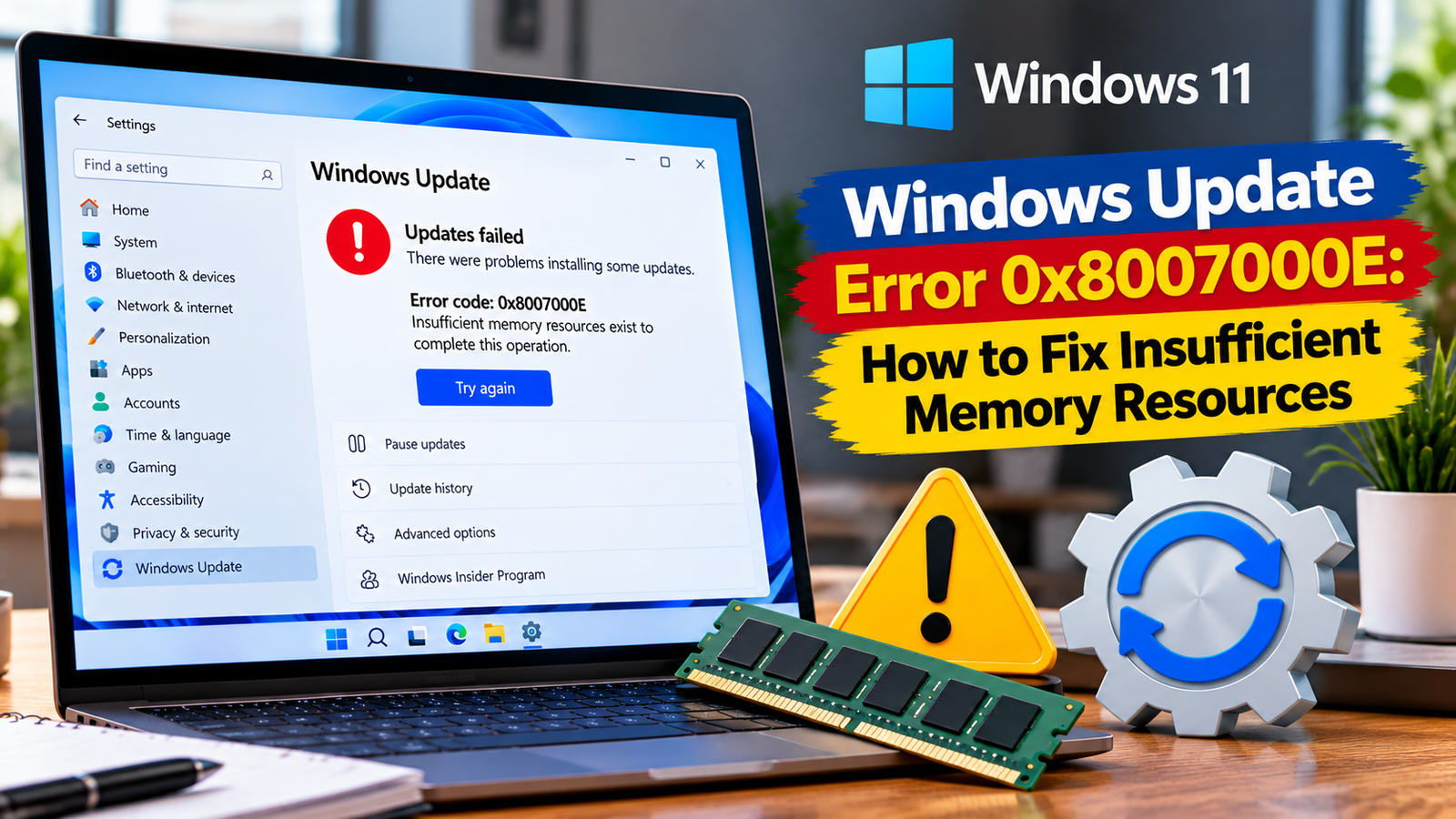
Windows Update Error 0x8007000E: How to Fix Insufficient Memory Resources
Windows Update error 0x8007000E can appear when Windows does not have enough available memory resources to complete an update installation. You may see the error while installing a cumulative update or another Windows update, even when your computer still has some free disk space.
The issue can involve high memory usage, applications consuming excessive resources or virtual memory settings that are not suitable for the system. The steps below help you identify the likely cause before making changes.
Listen to the quick guide: Windows Update error 0x8007000E
What Does Error 0x8007000E Mean?
Error 0x8007000E is associated with insufficient memory resources. During a Windows update, the installation process may need more memory than the system can make available at that moment.
Possible causes include:
- Several applications consuming substantial memory in the background.
- A memory-intensive application continuing to run during installation.
- Virtual memory or paging-file settings that restrict available resources.
- Limited available system resources on a computer running demanding workloads.
- A background application or service interfering with the update process.
This is not necessarily a sign that your computer needs more physical RAM. Start by checking actual memory usage and how Windows manages virtual memory.
Quick Diagnosis: Start Here
| What you’re seeing | Start with |
|---|---|
| The update failed once and other applications were open | Go to Fix 1 ↗ |
| Task Manager shows memory usage is consistently high | Go to Fix 2 ↗ |
| Virtual memory was manually configured or restricted | Go to Fix 3 ↗ |
| The Windows drive is nearly full | Go to Fix 4 ↗ |
| A background application may be interfering with installation | Go to Fix 5 ↗ |
| Memory checks look normal, but Windows Update still fails | Go to Fix 6 ↗ |
Fix 1: Restart Your Computer and Retry the Update
Before changing memory settings, restart Windows to close applications and clear temporary resource pressure.
- Save your open work.
- Select Start > Power > Restart.
- Wait for Windows to load completely.
- Open Settings > Windows Update.
- Select Check for updates and retry the failed installation.
Keep the computer connected to power while the update runs. Avoid opening resource-intensive applications until installation finishes.
If the update succeeds, monitor whether the error returns during future updates. If it fails again, check which applications are consuming memory.
Fix 2: Check Memory Usage in Task Manager
A computer can have enough installed RAM for everyday use but run short of available memory when several applications are active simultaneously.
- Press Ctrl + Shift + Esc to open Task Manager.
- Select Performance.
- Choose Memory.
- Review the memory usage and the amount available.
- Open the Processes tab and sort by Memory to identify applications using substantial resources.
Close applications you recognize and do not currently need. Save your work before closing them, and do not end unfamiliar Windows processes just because they appear near the top of the list.
If memory usage is consistently high, investigate the applications responsible before retrying the update.
What if memory usage looks normal? The error can still involve virtual memory or another resource problem. Continue to the next step rather than assuming the error has been resolved.
Fix 3: Check Whether Windows Manages Virtual Memory Automatically
Windows uses a paging file on disk as part of its virtual memory system. This helps the operating system manage memory demands when physical RAM alone is not sufficient.
If the paging file has been manually restricted, Windows may not have enough virtual memory available for some operations.
To check the setting:
- Press Windows + R.
- Type
sysdm.cpland press Enter. - Open the Advanced tab.
- Under Performance, select Settings.
- Open the Advanced tab in Performance Options.
- Under Virtual memory, select Change.
- Check whether Automatically manage paging file size for all drives is selected.
If this option is already enabled, leave it as it is and continue troubleshooting.
If you previously configured a custom paging-file size, consider restoring automatic management unless you have a specific reason to keep the manual setting. Select the automatic-management option, confirm the changes and restart the computer if prompted.
Do not select No paging file as a troubleshooting shortcut. Restricting virtual memory can create additional problems.
Fix 4: Check Available Disk Space
Virtual memory uses disk space, and Windows updates also need working space to download, unpack and install files. A nearly full system drive can complicate both operations.
- Open File Explorer.
- Select This PC.
- Check the available space on the drive containing Windows, usually
C:. - If space is low, open Settings > System > Storage.
- Review temporary files and other storage categories.
- Remove only files you recognize and no longer need, or move personal files to another storage location.
Do not delete unfamiliar files inside the Windows directory to free space. If you have recently installed large applications or downloaded large files, moving or removing unnecessary items may help.
Once sufficient space is available, restart the PC and retry Windows Update.
Fix 5: Test Whether a Background Application Is Interfering
Some applications and third-party services can consume significant resources or interfere with installation. A clean boot can help determine whether a non-Microsoft background service or startup application is contributing to the problem.
A clean boot changes which services and startup programs run, so use it carefully.
- Press Windows + R, type
msconfigand press Enter. - Open the Services tab.
- Select Hide all Microsoft services first.
- Only then select Disable all to disable the remaining listed services temporarily.
- Open the Startup tab and select Open Task Manager.
- Disable startup applications you can identify, recording their current settings so you can restore them later.
- Close Task Manager, select OK in System Configuration and restart the computer.
- Try Windows Update again.
Do not disable Microsoft services. If the computer is managed by your employer or school, consult your IT administrator before performing a clean boot.
If the update succeeds, a disabled background component may be involved. Restore normal startup settings and re-enable items methodically to identify the cause. If the error remains, restore the original settings and continue investigating.
Fix 6: Run Windows Update Troubleshooting and Repair Checks
If memory usage and virtual memory settings look normal, use Windows’ built-in repair tools to check for other issues that may be affecting update installation.
Run the Windows Update troubleshooter
- Open Settings > System > Troubleshoot > Other troubleshooters.
- Find Windows Update.
- Select Run and follow the instructions.
- Restart if prompted and try the update again.
On some Windows 11 systems, the troubleshooter runs through the Get Help app.
Check Windows system files
If the error continues, open Command Prompt as an administrator and run:
DISM.exe /Online /Cleanup-Image /RestoreHealth
Wait for the command to finish, then run:
sfc /scannow
Allow both operations to complete before restarting the computer. DISM may need access to Windows Update or another configured repair source.
These tools check and repair certain Windows image and system-file problems. They do not directly increase available RAM, so if the error is caused by genuine memory pressure, you may need to address the application or virtual memory issue instead.
If either command reports an error, record the full message for further diagnosis.
When Should You Seek Further Help?
If Windows Update error 0x8007000E persists, collect the following details:
- How much RAM is installed.
- Memory usage in Task Manager when the update fails.
- Whether virtual memory is managed automatically.
- Whether other applications are consuming unusually high resources.
- The name or KB number of the failed update.
- Any error messages from the Windows Update troubleshooter, DISM or SFC.
If the error occurs repeatedly despite adequate available memory and automatic paging-file management, the system may need a more targeted investigation. Avoid changing registry settings or increasing the paging file arbitrarily without evidence that the change is necessary.
Frequently Asked Questions
Does error 0x8007000E mean I need more RAM?
Not necessarily. Microsoft associates this error with insufficient memory resources, which can result from background applications or virtual memory configuration. Check actual memory usage before deciding whether a hardware upgrade is necessary.
Is virtual memory the same as RAM?
No. RAM is physical memory installed in the computer. Virtual memory is a memory-management system that also uses disk storage through a paging file. It can help Windows manage memory demands, but it is not a direct replacement for physical RAM.
Will increasing the paging file always fix this error?
No. A larger paging file is not a guaranteed fix. First check whether Windows manages virtual memory automatically and whether applications are consuming excessive resources. Avoid arbitrary manual size changes.
Can I continue using my computer if this error appears?
You can generally continue using Windows, but the failed update may leave important improvements or security fixes uninstalled. Address the cause and retry the update rather than ignoring a recurring failure.
Conclusion
Windows Update error 0x8007000E can indicate that an update installation does not have sufficient memory resources. Begin by restarting the computer, checking Task Manager and confirming that Windows manages virtual memory appropriately.
Then check available disk space, investigate background applications and use the Windows Update troubleshooter and system-file repair tools if needed. These steps help distinguish a resource shortage from a separate update problem without making unnecessary changes to your system.






