Windows Upgrade Error 0xC1900107: How to Fix Pending Setup Cleanup
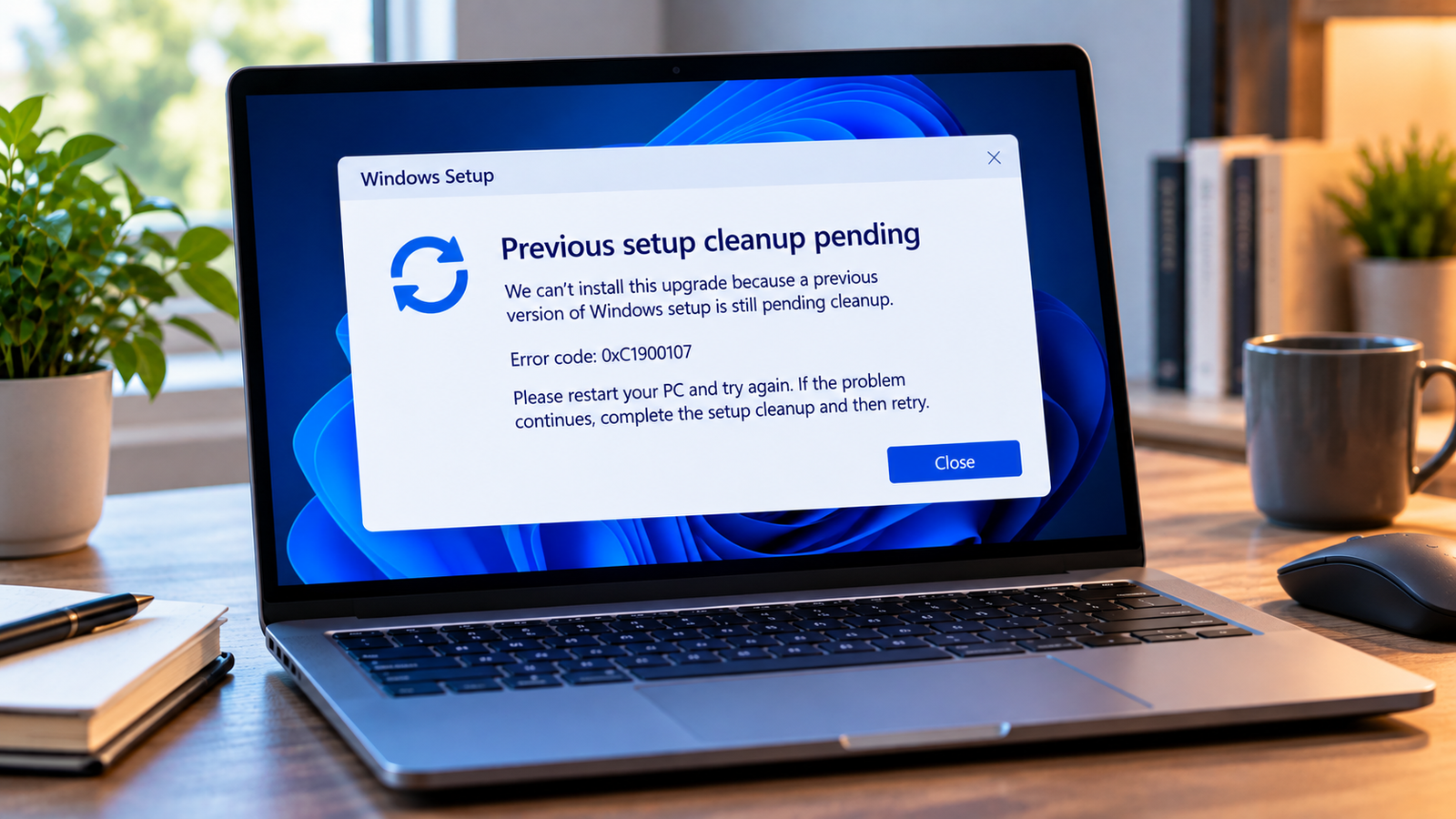
Windows upgrade error 0xC1900107 usually appears when Windows Setup detects that cleanup from an earlier installation attempt is still pending. A new upgrade cannot continue until the pending cleanup operation has been resolved.
The good news is that this error does not automatically mean Windows is damaged or that you need to reinstall it. Start with a normal restart, then use Windows’ built-in cleanup tools if the error remains.
Follow these steps in order. Avoid manually deleting Windows setup folders, since some files may be needed to roll back to your previous Windows installation.
Listen to the quick guide: Windows upgrade error 0xC1900107
Why Does Error 0xC1900107 Occur?
Windows Setup performs cleanup after certain installation or upgrade attempts. If a previous attempt did not finish its cleanup process, Windows may require a restart before another attempt can begin.
Common situations include:
- A previous Windows upgrade did not complete normally.
- Setup is waiting for a restart to finish pending operations.
- Temporary or system files from an earlier installation attempt remain.
- The error persists after a restart and requires further cleanup.
The error code alone does not identify a particular file that must be deleted. Start with the supported cleanup process rather than trying to remove setup files manually.
Quick Diagnosis: Start Here
| What you’re seeing | Start with |
|---|---|
| The error appeared after an earlier upgrade attempt | Go to Fix 1 ↗ |
| The error remains after restarting Windows | Go to Fix 2 ↗ |
| The Windows drive has very little free space | Go to Fix 3 ↗ |
| Windows Update shows pending updates or a restart | Go to Fix 4 ↗ |
| Cleanup is complete and you’re ready to retry Setup | Go to Fix 5 ↗ |
| The error continues after cleanup and another restart | Go to Fix 6 ↗ |
Fix 1: Restart Your Computer
Restarting is the first step because Windows may need to complete pending operations during startup.
- Save your work and close open applications.
- Open Start > Power > Restart.
- Allow Windows to start fully. Do not interrupt the restart.
- Once you are back at the desktop, run Windows Setup or retry the upgrade.
Choose Restart, rather than Shut down followed by turning the PC on, so Windows performs a restart sequence.
If the upgrade proceeds normally, no additional cleanup may be necessary. If error 0xC1900107 appears again, continue to Fix 2.
Fix 2: Run Disk Cleanup for System Files
If restarting does not resolve the error, use Disk Cleanup to remove eligible temporary and system files.
- Open Start and search for Disk Cleanup.
- Select the Windows system drive, usually C:.
- Choose Clean up system files.
- Select the system drive again if prompted.
- Review the available categories and select only the files you no longer need.
- Confirm the cleanup and allow it to finish.
The available categories depend on your computer’s current state. Do not select files simply because they sound related to Windows Setup; read the description before removing them.
Important: Previous Windows installation files may be required if you want to roll back to your earlier version. Removing them can eliminate that rollback option. If you may need to return to the previous installation, leave those files in place.
After Disk Cleanup finishes, restart your computer and try the upgrade again.
Fix 3: Check Storage Space on the Windows Drive
Insufficient free space can complicate an upgrade, even though it is not the primary meaning of error 0xC1900107.
- Open Settings > System > Storage.
- Check how much free space is available on the drive containing Windows.
- If space is low, review temporary files and other categories Windows identifies as safe to clean.
- Move personal files to another drive or an external storage device if necessary.
- Recheck the available space before retrying Setup.
Do not delete unfamiliar folders from the Windows directory to free space. Use Windows’ storage tools and remove only files you recognize and no longer need.
If the drive has adequate space and the cleanup error persists, move to Fix 4.
Fix 4: Install Pending Windows Updates and Restart
A pending restart or unfinished update may be contributing to the problem. Check Windows Update before attempting another upgrade.
- Open Settings > Windows Update.
- Check whether updates are waiting to install or whether Windows is asking you to restart.
- Install applicable updates and follow any restart prompts.
- After Windows returns to the desktop, check Windows Update again.
- Retry the intended upgrade only after the current update process has completed.
If Windows Update reports a separate error, note that code as well. It may need its own troubleshooting steps.
Fix 5: Retry Setup Using the Same Supported Upgrade Method
Once Windows has restarted and cleanup is complete, retry the upgrade using the supported method you originally intended.
- If you started the upgrade through Windows Update, check for the update again.
- If you used installation media, confirm it is appropriate for your current Windows installation and target version.
- If Setup asks for another restart, allow it to complete.
Before retrying, save important work and keep the computer connected to reliable power. If you are performing a major version upgrade, back up important personal files first.
If the error returns immediately, do not repeat the same process indefinitely. Move to the diagnostic step below.
Fix 6: Investigate the Error if Cleanup Still Fails
If restarting and Disk Cleanup have not resolved Windows upgrade error 0xC1900107, inspect the upgrade diagnostics before making more changes.
Windows Setup logs can help explain what happened during the previous attempt. More advanced users can also use Microsoft’s SetupDiag tool to analyse upgrade failures.
- Record the exact error code and when it appears.
- Check Windows Setup logs, including relevant files in the
C:\$WINDOWS.~BT\Sources\Pantherfolder if it exists. - Use Microsoft’s SetupDiag guidance if you are comfortable analysing diagnostic results.
- If the logs point to a different error, investigate that specific cause instead of assuming cleanup is still the only issue.
Do not manually remove the $WINDOWS.~BT folder, delete registry entries, or run unverified cleanup scripts to force Setup to continue. If the logs are unclear, seek help using the exact code and relevant diagnostic details.
Frequently Asked Questions
Is error 0xC1900107 serious?
Not necessarily. It usually means cleanup from a previous installation attempt is still pending. A restart often resolves it, while persistent cases may require Disk Cleanup or further investigation.
Will Disk Cleanup delete my personal files?
Disk Cleanup offers categories of temporary and system files, but you should review the selections before confirming. Be especially careful with previous Windows installation files, which may be needed for rollback.
Should I delete the Windows.old folder to fix this error?
Do not delete it as a first step. That folder may contain files needed to return to the previous Windows installation. Use Disk Cleanup and review the consequences of each selected category before proceeding.
What if restarting does not fix 0xC1900107?
Run Disk Cleanup with Clean up system files, restart again, and retry Setup. If the error persists, review Windows Setup logs or use Microsoft’s SetupDiag guidance rather than repeatedly attempting the same upgrade.
Final Advice
Windows upgrade error 0xC1900107 is associated with cleanup left pending by an earlier installation attempt. Start with a restart, then use Disk Cleanup if needed. Check available storage and make sure other updates have finished before retrying.
If the code continues to appear, use setup diagnostics to investigate the cause. Avoid manually deleting setup folders or rollback files without understanding what they contain.