
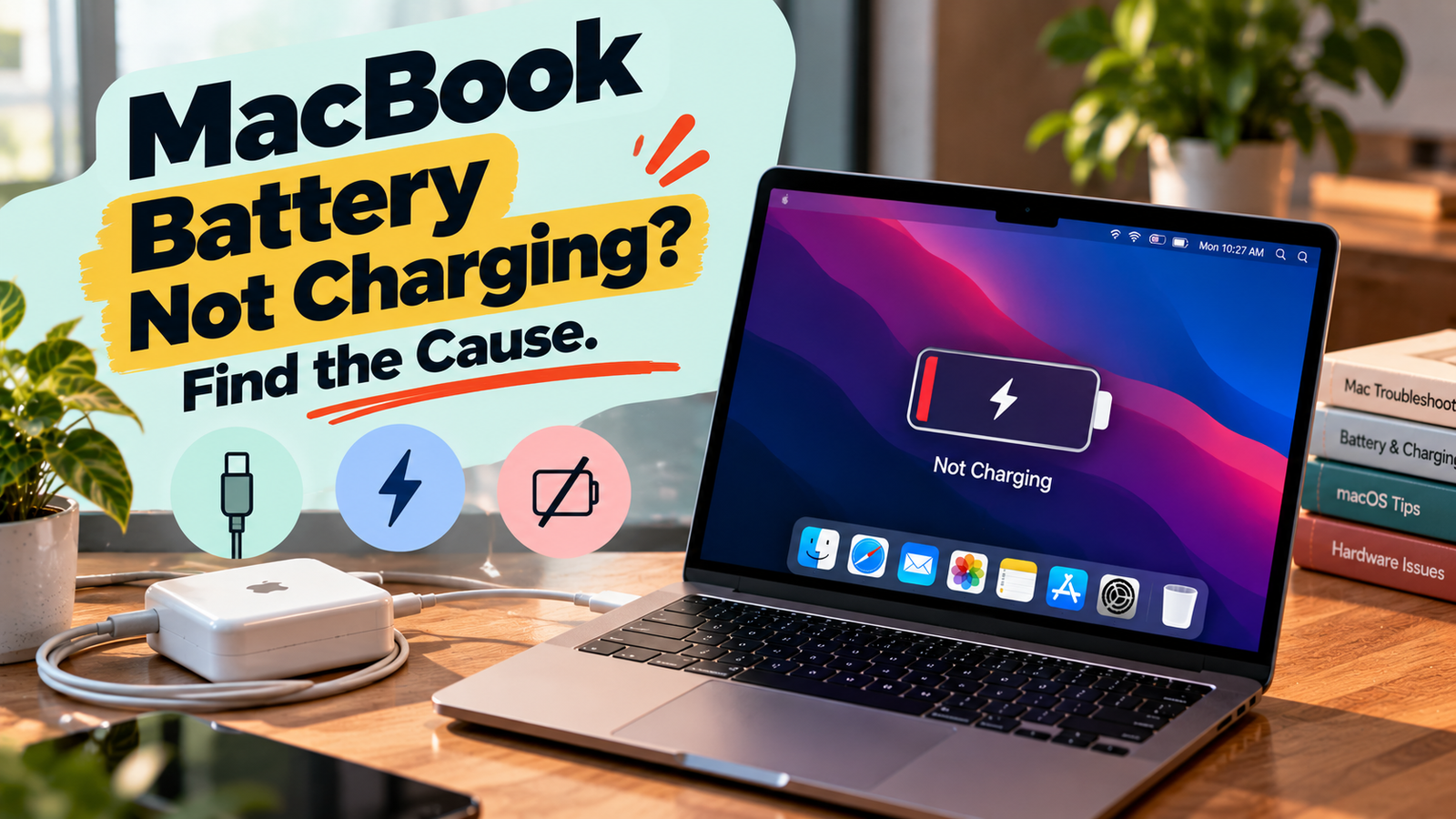
MacBook Battery Not Charging? Find the Cause
When your MacBook battery is not charging, you may notice that the battery percentage stays the same, increases very slowly, or drops even while the charger is connected. You might also see a message such as “Not Charging” or “Charging On Hold” in the battery menu.
The cause is not always a faulty battery. A damaged cable, an unsuitable power adapter, a charging port issue, high operating temperatures, or macOS battery management settings can all affect charging.
Before replacing the battery or buying a new charger, check what your MacBook is reporting and whether it is receiving enough power. The following fixes will help you narrow down the cause without making unnecessary changes.
Quick Diagnosis: MacBook Battery Not Charging?
| What you’re seeing | Start here |
|---|---|
| The battery percentage does not increase | Go to Fix 1 ↗ |
| Your MacBook displays “Not Charging” | Go to Fix 2 ↗ |
| The charger or cable may not be delivering power | Go to Fix 3 ↗ |
| Your MacBook charges intermittently | Go to Fix 4 ↗ |
| Charging pauses when the MacBook gets hot | Go to Fix 5 ↗ |
| Charging stops around 80% | Go to Fix 6 ↗ |
| The charging port may be the problem | Go to Fix 7 ↗ |
| Your battery still will not charge after these checks | Go to Fix 8 ↗ |
Fix 1: Check Whether the Battery Percentage Is Increasing
Start by checking the battery status in macOS. A connected charger does not necessarily mean the battery is actively charging.
- Connect your MacBook to a compatible power adapter.
- Open the battery menu in the menu bar, or check System Settings → Battery.
- Look for the charging status and current battery percentage.
- Leave the MacBook connected for approximately 20 to 30 minutes.
- Check whether the percentage has increased.
If the percentage rises, the charging system is working, although charging speed may vary depending on the adapter, battery level, and workload.
If the percentage remains unchanged, check whether macOS reports that charging is paused or unavailable.
Also consider what you are doing while the MacBook is plugged in. Video editing, gaming, external displays, and other demanding tasks can consume substantial power. With an underpowered adapter, the battery may charge very slowly or continue to drain despite being connected.
If there is no progress after a reasonable period, move on to the charging status and power supply checks.
Fix 2: Understand the “Not Charging” Message
If your MacBook says “Not Charging,” it does not automatically mean the battery has failed.
The message can appear when macOS is managing battery charging, when the power adapter cannot supply enough power for the current workload, or when another charging condition prevents the battery from charging normally.
Try the following:
- Check whether the charger is recognised by your MacBook.
- Look for any additional information in the battery menu or Battery settings.
- Close demanding applications temporarily.
- Leave the MacBook connected to its charger and observe whether the status changes.
- If the battery remains low and does not charge, test another compatible power adapter if available.
If the battery is nearly full, charging may pause temporarily as part of normal battery management. If it remains at a low percentage for an extended period, investigate the adapter, cable, and charging port.
Do not assume that the battery needs replacement solely because macOS displays “Not Charging.”
Fix 3: Check Your Charger, Cable, and Power Adapter
A MacBook may not charge properly if its adapter is damaged, its cable is faulty, or the power supply does not provide enough wattage.
Start with the simplest checks:
- Confirm that the wall outlet is working by testing it with another device.
- Inspect the adapter and cable for visible damage, fraying, or bent connectors.
- Disconnect and reconnect the charger securely.
- If your MacBook uses USB-C charging, try another supported charging port.
- If possible, test with a known-good, compatible power adapter and cable that provide adequate power for your model.
A lower-wattage adapter may charge your MacBook slowly, particularly when you are using it for demanding tasks. Some adapters may provide enough power to maintain operation without increasing the battery percentage.
If another suitable charger works normally, the original adapter or cable may be responsible.
Stop using any charger or cable that is visibly damaged, unusually hot, or producing a burning smell.
Fix 4: Troubleshoot Intermittent Charging
If your MacBook starts charging and then stops, the problem may involve a loose connection, a damaged cable, a charging port issue, or inconsistent power delivery.
Try these steps:
- Place your MacBook on a stable surface.
- Disconnect and reconnect the charging cable.
- Check whether the charging indicator or battery status changes.
- If supported, test another charging port.
- Try a different compatible cable and adapter, changing one component at a time.
Pay attention to whether charging stops when the cable moves or when the MacBook is repositioned. If that happens repeatedly, the connector, cable, or port may be damaged.
Do not bend the cable, force the connector into place, or repeatedly wiggle it to maintain a connection. This can worsen the damage.
If charging remains intermittent with multiple known-good chargers, arrange a professional inspection of the charging port and internal power components.
Fix 5: Let Your MacBook Cool Down
Your MacBook may temporarily pause charging if its temperature becomes too high. Battery charging is temperature-sensitive, and macOS may adjust charging behaviour to protect the battery.
If the MacBook feels unusually warm, try the following:
- Save your work and close demanding applications.
- Disconnect unnecessary peripherals.
- Move the MacBook away from direct sunlight or other heat sources.
- Place it on a hard, flat surface with adequate ventilation.
- Allow it to cool before checking the charging status again.
Avoid placing the MacBook on a bed, cushion, or blanket while charging, as these surfaces can restrict heat dissipation.
Once the temperature returns to a normal operating range, charging may resume automatically.
If the MacBook repeatedly becomes excessively hot during ordinary use or charging, investigate the underlying cause rather than treating every charging pause as normal. Stop using and charging it if you notice swelling, a burning smell, or other signs of physical damage.
Fix 6: Check Whether Charging Is Paused Around 80%
If your MacBook consistently stops charging at approximately 80%, the battery may be responding to an intentional charging limit rather than experiencing a fault.
macOS includes battery management features designed to reduce battery ageing. Depending on your MacBook and settings, Optimised Battery Charging may delay charging beyond 80% based on your usage patterns.
To investigate:
- Open System Settings → Battery.
- Look for battery health information and charging options.
- Check whether Optimised Battery Charging or another charging limit is active, if available.
- Review the displayed charging status and follow the available controls if you need a full charge.
The exact options depend on your macOS version and MacBook model.
If you need a full battery for travel or another immediate purpose, use the available charging controls where supported. You do not need to disable battery management permanently just because charging pauses at 80%.
If the battery stops at a low percentage and never progresses, the issue is less likely to be explained by the normal 80% charging behaviour alone.
Fix 7: Inspect the Charging Port
Dust, debris, physical damage, or a loose connection can interfere with charging.
First, disconnect the charger and inspect the charging port under good lighting.
Check for:
- Visible debris or lint
- A connector that does not fit securely
- Signs of corrosion or physical damage
- Discolouration or evidence of overheating
If you see debris, do not insert metal objects, liquids, or sharp tools into the port. If the port appears damaged or contaminated, have it inspected by a qualified technician.
For USB-C MacBooks, try another supported port if your model has one. If one port charges normally while another does not, the problem may be isolated to a particular port.
If the MacBook uses MagSafe, inspect the connector and charging contacts for visible debris or damage, and reconnect it carefully.
If none of the supported ports work with a known-good charger, the cause may lie in the charging circuitry, battery, or another internal component.
Fix 8: Check Battery Health and Arrange Further Diagnosis
If the MacBook still will not charge after you have checked the power adapter, cable, temperature, and charging settings, examine its battery health.
Open System Settings → Battery and look for the Battery Health information available on your Mac.
Depending on the model and macOS version, you may see a status indicating that the battery is functioning normally or requires service.
A battery that needs service may have reduced capacity or other problems that affect its ability to hold or accept a charge.
You can also restart your MacBook and check whether charging resumes. If a software-related issue is suspected, install appropriate macOS updates after backing up your important files.
If charging remains unavailable, consider these possibilities:
- The battery has deteriorated or developed a fault.
- The charging port or internal charging circuitry is damaged.
- The power adapter is not delivering the required power.
- A hardware problem is preventing normal battery operation.
If your MacBook repeatedly fails to charge with known-good equipment, arrange an assessment through Apple Support or an authorised service provider. A professional diagnosis can distinguish between a battery problem and a fault elsewhere in the charging system.
Why Your MacBook Battery May Not Be Charging
Several issues can explain why a MacBook battery does not charge normally:
- Faulty power equipment: A damaged cable or adapter can interrupt power delivery.
- Insufficient wattage: The adapter may not provide enough power for your MacBook and its current workload.
- Battery management: macOS may temporarily delay charging to support battery health.
- High temperature: Charging may pause until the battery or computer cools.
- Damaged charging port: Debris, wear, or physical damage can interfere with the connection.
- Battery deterioration: An ageing or faulty battery may struggle to accept or retain a charge.
- Hardware or software problems: An issue with macOS or internal power components may affect charging.
The battery percentage and the message shown in macOS are useful clues. A pause at 80% is different from a battery stuck at 12%, and both are different from a MacBook that repeatedly disconnects from its charger.
How to Prevent MacBook Charging Problems
A few simple habits can help maintain reliable charging and reduce unnecessary battery wear.
- Use suitable charging equipment: Choose a compatible adapter and cable that meet your MacBook’s power requirements.
- Protect charging cables: Avoid sharp bends, tension, and pulling the cable out by its cord.
- Keep the MacBook cool: Use it on a stable surface with adequate ventilation.
- Keep charging ports clean: Inspect ports periodically and avoid exposing them to liquids or debris.
- Monitor battery health: Review the battery health status when charging behaviour changes.
- Allow charging features to work: Battery management may intentionally pause charging, so do not disable it unnecessarily.
- Install appropriate updates: Keep macOS updated when convenient and back up important files before major updates.
- Investigate recurring problems early: Repeated charging interruptions can indicate a cable, port, battery, or hardware fault.
Frequently Asked Questions
Why is my MacBook plugged in but not charging?
The adapter may not provide enough power, the cable or port may be faulty, or macOS may have paused charging to manage battery health or temperature. Check the charging status, test a compatible power adapter, and allow the MacBook to cool if necessary.
Why does my MacBook stop charging at 80%?
Optimised Battery Charging or another supported charging limit may be active. Check the Battery settings in macOS before assuming that the battery is faulty.
Can I use my MacBook while it is charging?
Yes. You can generally use your MacBook while it is charging. However, demanding applications may consume enough power to slow charging, especially when using a lower-wattage adapter.
How do I know if my MacBook battery needs replacing?
Check the Battery Health information in System Settings. A service warning, reduced runtime, repeated charging problems, or unexpected shutdowns may indicate that the battery needs professional evaluation.
Will restarting my MacBook fix a charging problem?
A restart may help if a temporary software issue is affecting charging status. It will not repair a damaged cable, defective adapter, worn battery, or faulty charging port.
Is it safe to leave my MacBook plugged in overnight?
MacBooks include battery management features designed to support long-term battery health. Use compatible charging equipment and keep the computer on a well-ventilated surface. If the device becomes abnormally hot, shows signs of battery swelling, or has damaged charging equipment, stop charging it and seek assistance.






