
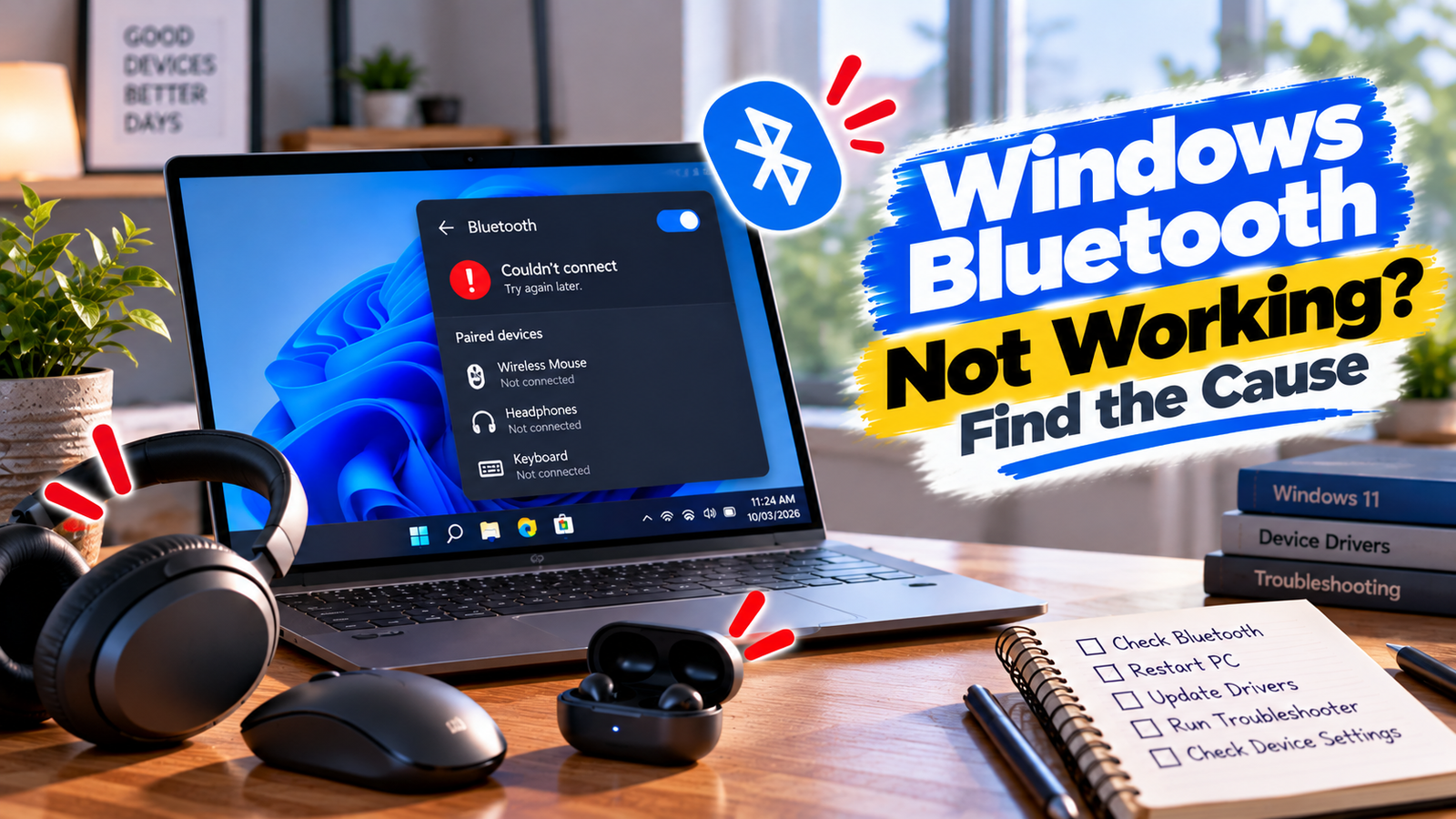
Windows Bluetooth Not Working? Find the Cause
If your Windows Bluetooth Not Working, the problem can be surprisingly difficult to pin down. Bluetooth may have disappeared from Windows, refused to turn on, failed to find a device, or connected successfully only to disconnect a few minutes later.
The first thing to establish is where the Bluetooth connection is failing. A missing Bluetooth option needs a different approach from a device that appears in Windows but refuses to pair.
Quick Diagnosis: Start Here
| What you’re seeing | Start here |
|---|---|
| Bluetooth is completely missing from Windows | Go to Fix 1 |
| Bluetooth is visible but won’t turn on | Go to Fix 2 |
| Your Bluetooth device isn’t appearing | Go to Fix 3 |
| The device appears but won’t pair | Go to Fix 4 |
| A previously connected device stopped working | Go to Fix 5 |
| Bluetooth connects but keeps disconnecting | Go to Fix 6 |
| Bluetooth stopped working after an update | Go to Fix 7 |
Fix 1: Check Whether Windows Detects Bluetooth
If Bluetooth has completely disappeared from Windows, start by checking whether Windows can see the Bluetooth hardware.
Open Settings → Bluetooth & devices.
If there is no Bluetooth option, open Device Manager.
Right-click the Start button and select Device Manager, then look for a Bluetooth category.
You may also find Bluetooth-related hardware under Network adapters or another hardware category, depending on the computer.
If the Bluetooth adapter appears with a warning symbol, Windows may be reporting a driver or hardware problem.
If Bluetooth isn’t listed anywhere, your computer may have:
- A disabled Bluetooth adapter
- A missing driver
- A hardware problem
- No built-in Bluetooth at all
If this is a desktop PC, also check whether the computer actually has Bluetooth hardware. Some desktops require a separate Bluetooth adapter.
Fix 2: Make Sure Bluetooth Is Turned On
If Windows shows Bluetooth but you can’t connect anything, make sure Bluetooth itself is enabled.
Open:
Settings → Bluetooth & devices
Turn Bluetooth on.
Also make sure Airplane mode is turned off.
On some laptops, a manufacturer-specific keyboard shortcut or hardware control can affect wireless features. If Bluetooth repeatedly switches off or disappears, check your computer manufacturer’s documentation.
If Bluetooth turns on normally but your device still isn’t detected, move to the pairing checks.
Fix 3: Put the Device Into Pairing Mode
If Windows Bluetooth is working but your headphones, mouse, keyboard, speaker or other device doesn’t appear, the accessory may not actually be discoverable.
Put the Bluetooth device into pairing mode according to its manufacturer’s instructions.
The exact process varies. Some devices require holding a Bluetooth button, while others enter pairing mode automatically when they’re switched on for the first time.
Also check whether the device is already connected to another phone, tablet or computer.
A Bluetooth accessory that’s actively connected elsewhere may not appear as an available device on your Windows PC.
Keep the accessory close to the computer while pairing.
Then open:
Settings → Bluetooth & devices → Add device → Bluetooth
Wait for the device to appear.
If it still doesn’t show up, try turning the accessory off and back on before searching again.
Fix 4: Remove the Device and Pair It Again
If Windows can see the Bluetooth device but refuses to complete the connection, the existing pairing information may be causing trouble.
Open:
Settings → Bluetooth & devices → Devices
Find the affected device and select the option to remove it.
Then put the accessory back into pairing mode and choose:
Add device → Bluetooth
Select it when it appears.
This gives Windows a clean opportunity to establish the connection instead of relying on an old pairing record.
If the device has its own reset or pairing procedure, follow that before trying again.
Fix 5: Check a Device That Used to Work
If Bluetooth worked previously but a particular device has suddenly stopped connecting, don’t assume the Bluetooth hardware in your PC has failed.
First check whether another Bluetooth device can connect.
For example, if your wireless headphones stopped working, try connecting a Bluetooth mouse or phone.
If another device connects successfully, the problem is probably specific to the original accessory or its saved pairing.
Also check whether the accessory:
- Has enough battery
- Is switched on
- Is within range
- Is connected to another device
- Has recently been reset
- Has received a firmware update
If only one accessory is affected, focus on that device before changing Windows Bluetooth settings.
Fix 6: Check for Bluetooth Disconnects
If a Bluetooth device connects but repeatedly drops out, look for a pattern.
Does it disconnect:
- When you move farther away?
- After the computer wakes from sleep?
- When the device battery gets low?
- During heavy computer activity?
- After a recent Windows update?
- Only with one particular accessory?
Start by fully charging the Bluetooth device and keeping it close to the PC.
If the connection becomes stable at close range, distance or interference may be involved.
If the device disconnects even when it’s beside the computer, check the Bluetooth adapter and its driver.
It’s also worth testing another Bluetooth device. If several accessories disconnect in the same way, the Windows PC is more likely to be the common problem.
Fix 7: Check the Bluetooth Driver After an Update
If Bluetooth stopped working immediately after a Windows update or driver change, check Device Manager.
Open:
Device Manager → Bluetooth
Right-click the Bluetooth adapter and open Properties.
Look at the device status for any reported problem.
You can also check the Driver tab for available driver options.
If the problem started after a driver update and Windows offers a rollback option, reverting to the previous driver may help.
Otherwise, check your PC manufacturer’s support site for the appropriate Bluetooth driver for your exact computer model.
Avoid downloading generic drivers from unfamiliar websites.
If Bluetooth worked correctly before a specific update, note that timing. It can be an important clue when diagnosing the problem.
Why This Happens
Bluetooth problems on Windows aren’t all the same.
If Bluetooth has vanished from Settings and Device Manager, Windows may not be detecting the adapter correctly.
If Bluetooth is available but can’t find your headphones or keyboard, the accessory may not be in pairing mode or may already be connected somewhere else.
If a device pairs but repeatedly disconnects, battery level, range, interference, drivers or the adapter itself become more relevant.
That’s why the most useful question isn’t simply “Is Bluetooth working?”
It’s:
Can Windows see the Bluetooth hardware → can it see the accessory → can it pair → can it maintain the connection?
The point where that chain breaks gives you a much better starting point.
How to Prevent Windows Bluetooth Problems
A few simple habits can reduce unnecessary Bluetooth troubleshooting:
- Keep Bluetooth device batteries charged.
- Remove old Bluetooth devices you no longer use.
- Keep accessories reasonably close to the PC.
- Don’t leave an accessory connected to another device when trying to pair it with Windows.
- Keep your PC’s Bluetooth driver reasonably current.
- Use drivers supplied by your computer manufacturer where possible.
- If a problem begins immediately after a Windows or driver update, note the timing.
- Keep important Bluetooth accessories’ reset or pairing instructions handy.
Frequently Asked Questions
Why is Bluetooth missing from my Windows PC?
Windows may not be detecting the Bluetooth adapter, the adapter may be disabled, or its driver may be missing or damaged. Check Settings and Device Manager first.
Why won’t Windows Bluetooth turn on?
The Bluetooth adapter or its driver may have a problem, or another wireless setting may be interfering. Check Airplane mode, Device Manager and the Bluetooth adapter’s status.
Why can’t Windows find my Bluetooth device?
Make sure the accessory is switched on, fully charged and in pairing mode. Also check whether it is already connected to another phone, tablet or computer.
Why does my Bluetooth device connect and then disconnect?
Low battery, distance, wireless interference, driver problems or an issue with the Bluetooth adapter can cause repeated disconnections.
Should I remove and re-pair my Bluetooth device?
Yes, if the device appears in Windows but won’t connect properly. Removing the saved pairing and adding the device again can clear a corrupted or outdated pairing record.
Why did Bluetooth stop working after a Windows update?
A Windows update can sometimes expose a driver or compatibility problem. Check the Bluetooth adapter in Device Manager and look for an appropriate driver or rollback option.
What if only one Bluetooth device isn’t working?
If other Bluetooth devices connect normally, the problem is more likely to be with the affected accessory, its battery, pairing state or firmware rather than Windows itself.






