
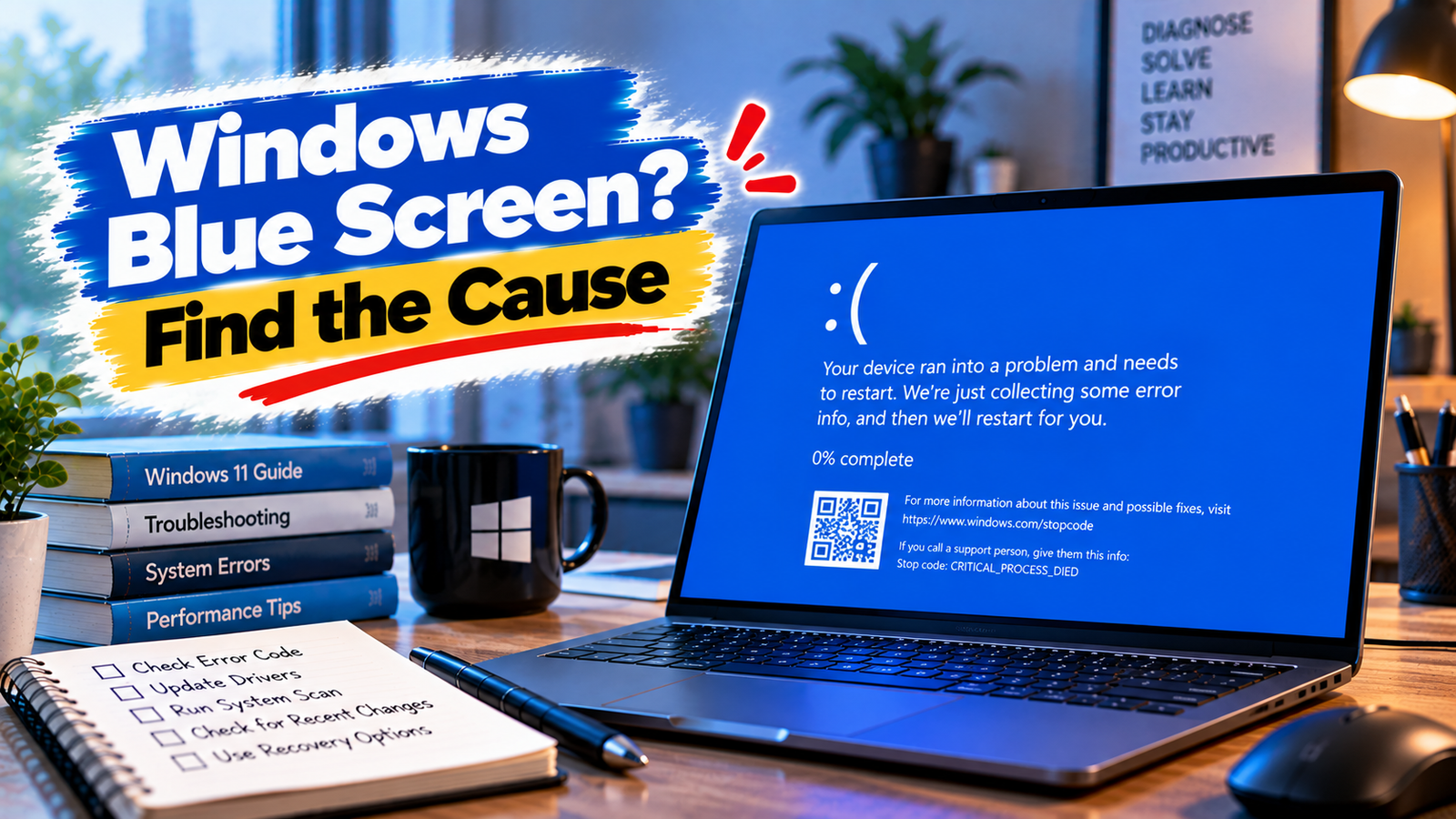
Windows Blue Screen? Find the Cause
A blue screen on a Windows PC can appear without warning, interrupt your work and force the computer to restart. Sometimes it happens once after an update or driver change. In other cases, the same error keeps returning, making the PC difficult to use.
The message on the screen matters. Windows may display a stop code, mention a failed component or provide very little information before restarting. These clues can help distinguish a driver problem from a hardware fault or a deeper Windows issue.
Quick Diagnosis: Start Here
| What you’re seeing | Start here |
|---|---|
| A blue screen appeared once and Windows is working normally now | Go to Fix 1 |
| The blue screen shows a stop code or a failed file | Go to Fix 2 |
| Crashes began after a driver, update or hardware change | Go to Fix 3 |
| Blue screens happen during gaming or demanding tasks | Go to Fix 4 |
| Windows keeps crashing or cannot start normally | Go to Fix 5 |
| The problem continues without an obvious cause | Go to Fix 6 |
Fix 1: Check Whether the Blue Screen Was a One-Time Event
If Windows showed a blue screen once but now starts and works normally, don’t immediately assume a component has failed.
Think about what happened before the crash. Had Windows just installed an update? Were you connecting a device, installing software or running an unusually demanding application?
Open View reliability history from the Start menu. Reliability Monitor displays system failures and other important events in a timeline, helping you see whether the blue screen coincided with an update, application failure or other change.
If the PC remains stable, keep an eye on it rather than changing several settings at once.
A single crash still deserves attention if it involved data loss or unusual hardware behaviour. Repeated blue screens, however, need a more deliberate investigation.
Fix 2: Record the Stop Code and Identify the Error
When a blue screen appears, Windows may display a stop code such as MEMORY_MANAGEMENT, IRQL_NOT_LESS_OR_EQUAL or CRITICAL_PROCESS_DIED.
Write down the complete code, including any file name mentioned on the screen. A photo is useful if the computer restarts too quickly to read the message.
The code can narrow the investigation, but it isn’t always a definitive diagnosis. For example, a memory-related stop code can be associated with faulty RAM, but driver problems or corrupted data can also contribute to certain memory errors.
If the blue screen disappears before you can record the details, check Reliability Monitor for the crash entry. Windows may also have created a crash dump that can be examined with suitable diagnostic tools.
Don’t replace hardware based on a stop code alone. Use it alongside the timing of the crash, recent changes and any recurring error details.
Fix 3: Undo a Recent Driver or Hardware Change
A blue screen that starts immediately after a change gives you a useful place to investigate.
Consider whether you recently:
- Installed or updated a device driver
- Added new RAM or another internal component
- Connected a new peripheral
- Installed a Windows update
- Changed system-level software or configuration
If a particular driver was updated shortly before the crashes began, open Device Manager, select the relevant device and check its driver properties. The Roll Back Driver option may be available if Windows retained the previous version.
If you recently added hardware, shut down the PC and check that the component is compatible and properly installed. Only inspect internal components if you’re comfortable doing so and can follow the manufacturer’s safety instructions.
Avoid uninstalling unrelated drivers or removing multiple updates at once. Changing one suspected cause at a time makes it easier to determine whether the problem has actually been resolved.
Fix 4: Investigate Crashes During Gaming or Heavy Workloads
Does the blue screen appear mainly when gaming, editing video, rendering or running another demanding application?
That pattern can point toward graphics drivers, excessive temperatures, unstable memory or power-related problems.
Start by checking whether the PC’s ventilation is clear and its cooling fans are working. If the crash began after a graphics driver update, investigate that driver before making other changes.
Also consider recent hardware changes or overclocking settings, if applicable. Returning modified CPU, GPU or memory settings to their standard values may help determine whether instability is involved.
If crashes continue under load, hardware diagnostics may be necessary. Don’t assume overheating is responsible simply because the crash happens during gaming; the stop code and other evidence still matter.
Fix 5: Use Windows Recovery if the PC Keeps Crashing
If blue screens keep appearing during startup or Windows cannot reach the desktop, you may need to use the Windows Recovery Environment.
Depending on the startup problem, you may be able to access recovery through the automatic repair screen or Windows installation media.
From the recovery options, consider Startup Repair first if Windows cannot start normally.
If the crashes began after a recent update, you may also be able to uninstall that update. If they followed a driver or configuration change, other recovery options may be more appropriate.
If Windows starts in Safe Mode, use that opportunity to investigate recent drivers, software installations and system changes.
Before choosing Reset this PC or reinstalling Windows, consider whether you have backed up important files. Major recovery actions can remove applications, settings or data, depending on the option selected.
Fix 6: Check for Memory, Storage or Windows System Problems
When the blue screen continues despite checking recent changes, look beyond the obvious software causes.
Check the system files. If Windows starts, open Windows Terminal or Command Prompt as an administrator and run:
DISM.exe /Online /Cleanup-image /Restorehealth
After it completes, run:
sfc /scannow
These tools can identify and repair certain problems with Windows components and protected system files.
Test the memory if the stop codes suggest it. Search for Windows Memory Diagnostic and run the available test. If the crashes continue or the results are inconclusive, more thorough memory testing may be needed.
Consider storage health. Repeated crashes, disk errors or problems accessing files can justify checking the storage device’s health.
If the PC reports hardware errors, fails diagnostics or continues crashing across different applications, professional hardware testing may be the next sensible step.
Why This Happens
A Windows blue screen occurs when the operating system encounters a problem serious enough that it cannot safely continue running.
The underlying cause can vary considerably. A faulty driver may destabilise the system, damaged Windows components can interfere with normal operation, and defective or unstable hardware can produce recurring crashes.
The circumstances help narrow the possibilities:
- After an update: A driver or software compatibility problem may be involved.
- During gaming: Graphics drivers, temperature, power delivery or component stability deserve attention.
- During startup: Windows recovery, system files or hardware may be involved.
- With recurring memory-related codes: Memory diagnostics and driver investigation may be useful.
- With no clear pattern: Crash records and hardware tests can help establish what is happening.
The important distinction is between identifying the error and proving its cause. A stop code is a starting point, not a guarantee that one particular component is responsible.
How to Reduce Future Blue Screen Errors
You cannot prevent every system crash, but you can reduce avoidable problems.
- Keep Windows and essential device drivers reasonably up to date.
- Download drivers from trusted sources.
- Check hardware compatibility before upgrading components.
- Avoid unstable overclocking settings.
- Keep important files backed up.
- Record recurring stop codes rather than treating every crash as unrelated.
- Investigate repeated blue screens before they lead to more serious instability.
Frequently Asked Questions
What causes the blue screen of death in Windows?
Common causes include faulty drivers, hardware problems, unstable memory, damaged system files and software compatibility issues. The stop code and circumstances surrounding the crash help narrow down the cause.
Can a Windows blue screen damage my computer?
A blue screen is usually Windows’ way of stopping after a serious system error. The crash itself doesn’t necessarily mean physical damage has occurred, but an underlying hardware fault may need attention.
Why does my PC show a blue screen and restart immediately?
Windows may be configured to restart automatically after a system failure. The restart can also occur as part of the crash-recovery process. Record the stop code or review Reliability Monitor to investigate further.
Does a blue screen always mean the RAM is faulty?
No. Memory-related stop codes can have several causes, including driver problems and corrupted data. Use diagnostic results and recurring error patterns before deciding that RAM needs replacing.
Should I reinstall Windows after a blue screen?
Not usually after a single crash. Investigate the stop code, recent changes and system records first. If Windows cannot start or crashes persist despite targeted troubleshooting, recovery or reinstallation may eventually be appropriate.
How can I find the cause if the blue screen disappears too quickly?
Check Reliability Monitor for the failure record. You can also investigate whether Windows saved a crash dump. These records may provide more information than the brief message displayed on the screen.






